Home / Categories / Editor
Why can't I find the Contact us element in my editor?
In a sales funnel, the Contact us element is only available on a step whose page type is set to Contact us page. On a blog it can be added to any page except the homepage. Looking for it on any other funnel page type will not find it, because it is not offered there at all.
The short version
The element is gated by page type. In a funnel it only exists on a step created as a Contact us page. On a blog it can sit on any page except the homepage.
Looking for it in the elements panel while editing a different kind of funnel page, an opt-in page or a sales page, for example, will not find it there. It is not a matter of scrolling further down the panel.
Adding it inside a funnel
The page type is chosen when the step is created; no article describes a way to change it afterward.
Click Add step in the funnel.
-
In the Type field, choose Contact us page. It is under the Misc heading. Contact us is a page type in this list, not an element in the editor.
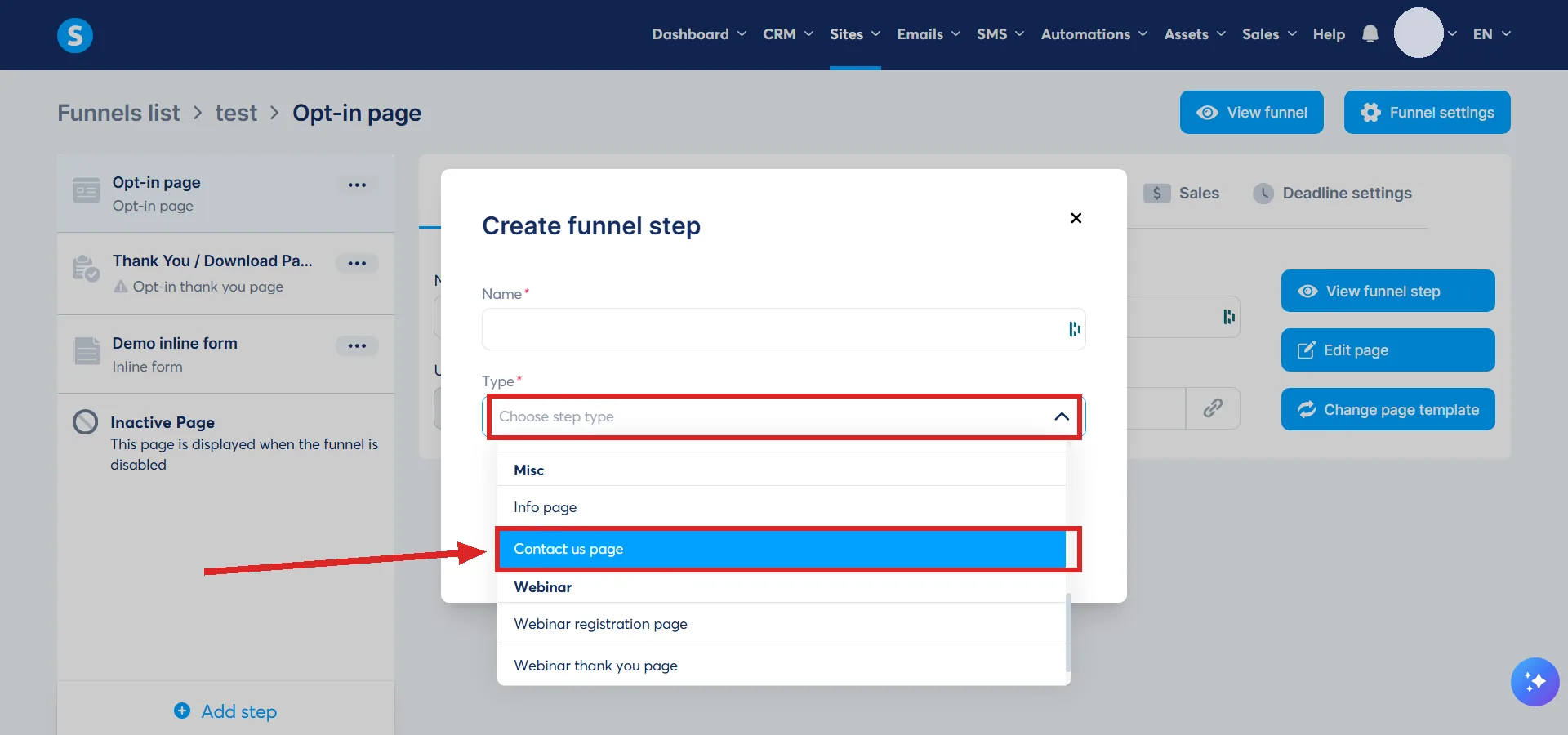
Name the step, pick a template or start from scratch, and click Save.
Starting from a template hands you a page with the element already on it. Starting from scratch means dragging the Contact us element in yourself, from the panel on the left, once the page type is already set to Contact us page. Either way, the page type has to be right before the element shows up.
Adding it to a blog
A blog works differently. Every blog template already includes a prebuilt contact page, reached from the blog's Pages tab. The same Contact us element can also be dragged onto any other blog page you build, with one exception: the homepage cannot carry it.
What the element actually does once it is there
Its settings, in the panel on the left, cover two things: whether visitors can attach a file to their message, and the confirmation text shown after they submit.
The email address that receives the submissions is not set on the element itself. It lives on the domain: your profile picture, then Settings, then Custom domains, then the three dots next to the domain, then Settings, then the field for Contact us form submissions.
How I checked this answer
Nothing on this site is written from memory. These are the sources I checked to write this answer, and the date I checked them.
- How to use the Contact us featurehelp.systeme.io, article 1580
Checked on
Did this answer your question?
Keep reading
- Why isn't my reCAPTCHA showing up on my form? One cause is a missing element. The other is two settings pointing at different domains.
- Why doesn't my consent checkbox work on my order form? Two separate systems share one checkbox, and only one of them reaches an order form.
- Why does my domain show the wrong page when someone types it without a path? The homepage is just whichever item still has an empty path box. Find the other one holding it.