Your own domain, set up in the right order
Your pages on your own domain, with the bare domain sent on to the www address, and your emails authenticated and sending from an address on that domain.
Before you start
A domain does two separate jobs in systeme.io. It puts your website, blog, funnels and courses on your own address in place of the systeme.io subdomain, and it lets you send emails from an address on it, such as info@yourdomain.com.
Each job has its own setup, and this guide does the pages first, because the email half depends on them. systeme.io says a domain you authenticate for email must have an active website linked to it, and that if the domain leads to a 404 error page, email providers may block your emails. Its advice for your first days of sending asks for an active home page on the domain, not a parking page.
Four things to settle before you start.
- Buy the domain. systeme.io cannot buy one for you. It names GoDaddy, Namecheap and Hostinger as examples of registrars to buy one from.
- Decide who adds the records. systeme.io's support team will connect and authenticate a domain for you at no charge, on any plan. You give them the email address on your systeme.io account and the login for your domain registrar. They recommend changing that password once they tell you the work is done. If the registrar login uses two-factor authentication, say so when you ask, and they arrange the code with you by email. They typically finish within a few hours, and the request starts from the free DNS setup page. The steps below are for doing it yourself.
- Know what connecting takes away. Once connected, the domain points only at your systeme.io account. A site already on that address, such as a WordPress or Wix site, stops being reachable there. systeme.io has a separate article for connecting a subdomain instead of the whole domain. What is a subdomain, and do I need one? explains the difference.
- Expect to type it two ways. Connecting the domain for your pages asks for it with www in front, such as www.yourdomain.com. Authenticating it for email asks for it without the www.
Step 1. Add the domain in systeme.io
Click your profile picture, then Settings, then Custom domains, then Add domain. Type your domain starting with www, such as www.yourdomain.com, and click Save.
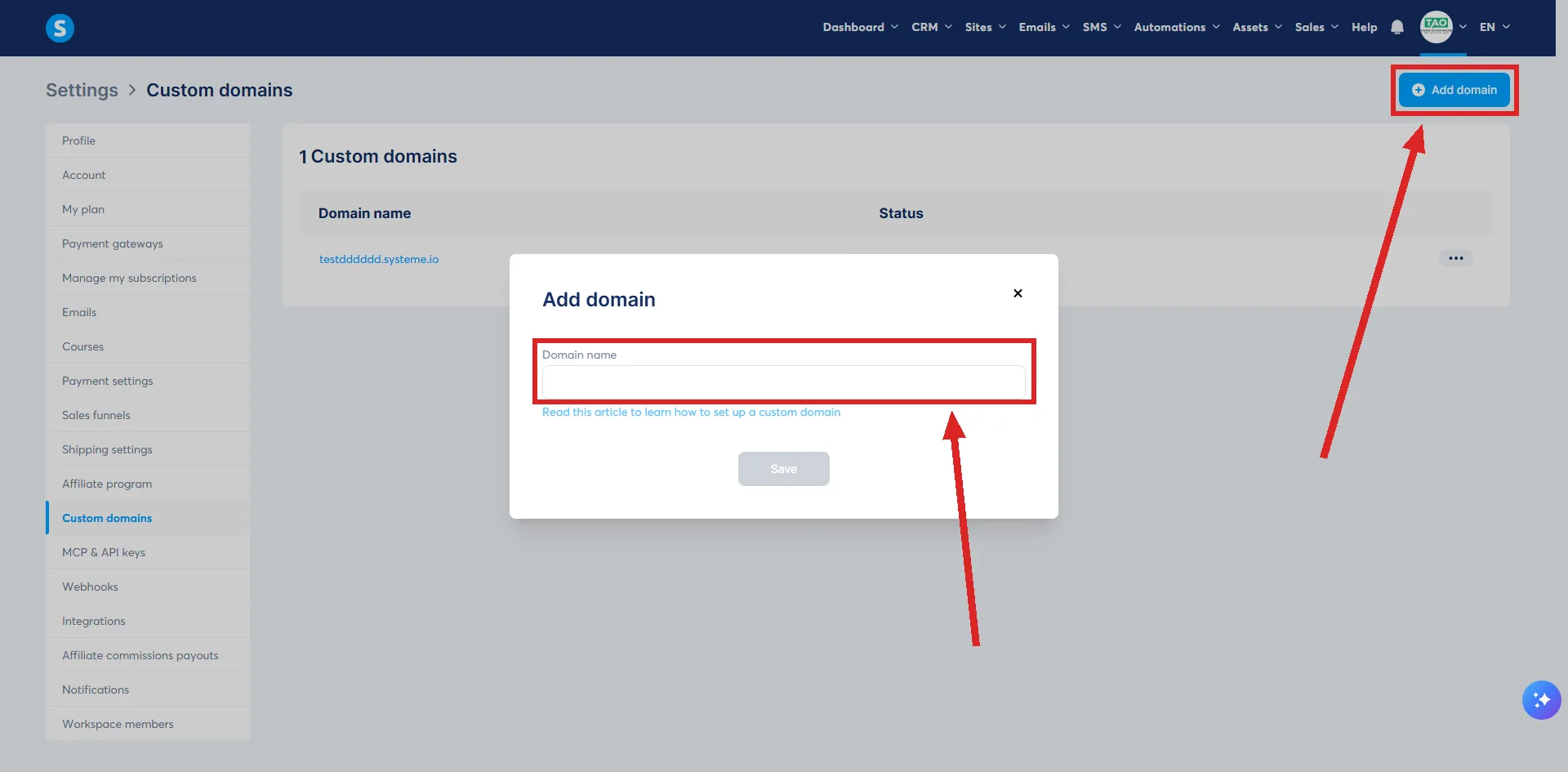
Keep the www. systeme.io says a domain added without it, such as yourdomain.com, is configured incorrectly and will not be approved.
A popup then shows two CNAME records. They are what you add at your domain host in the next step. You can find the records' host names again later, in your domain settings in systeme.io.
Step 2. Add the two CNAME records at your domain host
Log in wherever your domain's DNS is managed, open its DNS zone and create two new CNAME records, using the values systeme.io showed you.
This is the shape of the pair, using the example values in systeme.io's own article. They are examples, and you must add your own values.
| Record | Name (Host) | Target (Value) |
|---|---|---|
| First CNAME | www | dekiiavicthi9.cloudfront.net. |
| Second CNAME | _1f8c79f78f96a2a138cfe8561bdd4c64 | _e24285f43fa983395eba535130a6ecaa.nhsllhhtvj.acm-validations.aws. |
systeme.io writes separate step-by-step articles for these hosts.
- Cloudflare: connect the domain, authenticate it, add the DMARC record
- GoDaddy: connect the domain, authenticate it, add the DMARC record
- Hostinger: connect the domain, authenticate it, add the DMARC record
- Infomaniak: connect the domain, authenticate it, add the DMARC record
- IONOS: connect the domain, authenticate it, add the DMARC record
- LWS: connect the domain, authenticate it, add the DMARC record
- Namecheap: connect the domain, authenticate it, add the DMARC record
- OVH: connect the domain
Four notes before you type anything.
- A www record may already be there. The GoDaddy, Namecheap, Cloudflare and Hostinger articles all say that if a CNAME record named www already exists, you edit its value to the one systeme.io gives.
- Cloudflare: set the proxy status of both records to DNS only.
- Hostinger: its article asks for 10 CAA records before the two CNAME records, so that an SSL certificate can be generated for the domain.
- The full stop at the end. The example values in the table above end with a full stop. systeme.io's main article warns that some hosts, such as Hover, do not accept a full stop at the end of a record's value. It says this could be why a domain keeps losing its Ready to use status or has connection issues.
If your host cannot save one of the records, systeme.io says a conflict with another DNS record can be the cause. Contact your host to find out what that record is for, and ask whether it is safe to remove. The GoDaddy, Namecheap, Cloudflare and Hostinger articles add that this usually happens when adding the first CNAME record.
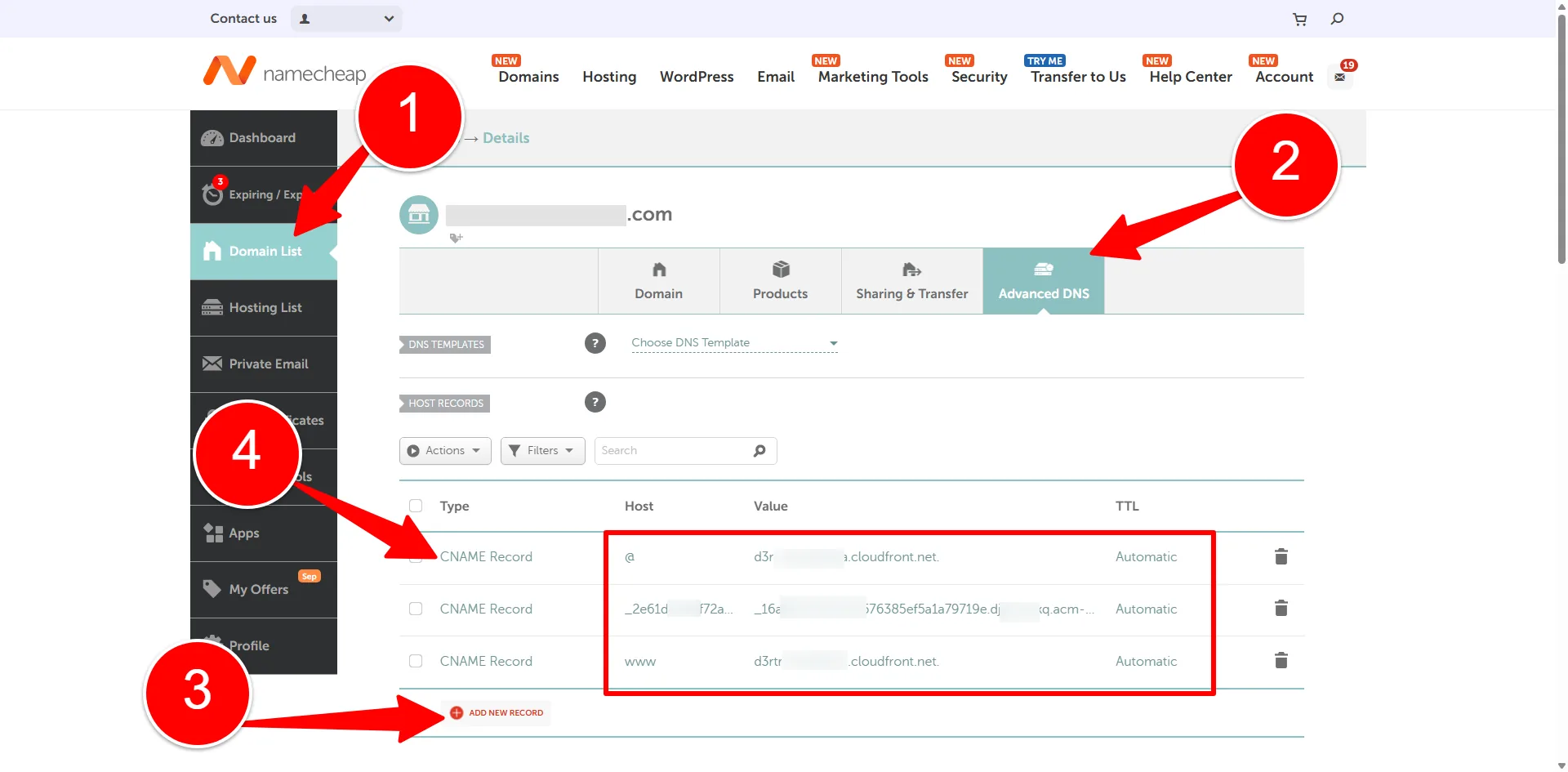
At Namecheap, for example, systeme.io's article goes to the Domain List, then the Advanced DNS tab for your domain, then Add new record, and picks CNAME record as the type.
Step 3. Send the bare domain on to the www address
systeme.io's third step sends yourdomain.com, without the www, on to www.yourdomain.com. How you set it up depends on your host.
- Most hosts: in the host's redirection or forwarding settings, add a redirection from yourdomain.com to www.yourdomain.com.
- GoDaddy: in the domain's DNS section, click Forwarding, then Add Forwarding for a domain. Select https://, enter your full www address as the destination URL, select Permanent (301) and click Save.
- Namecheap: in Advanced DNS, add a URL Redirect Record with @ as the host, https://www.yourdomain.com as the value and Permanent (301) selected. If that redirect does not work, the article recommends an ALIAS record instead. Give it @ as the host and the value from your first CNAME record, and set the TTL to Automatic or the lowest option.
- Cloudflare: add a CNAME record with @ as its name, the same target as your www record, and the proxy status set to DNS only.
- Hostinger: create an ALIAS record from the root to the same destination as your www record.
systeme.io's main article adds two warnings. The redirection usually only works with HTTP, or if you do not put the protocol in the address. And most domain registrars only support forwarding for HTTP addresses, not HTTPS. If you need HTTPS redirection, it recommends moving to a provider that supports CNAME flattening, such as Cloudflare, or root-level CNAMEs, such as Namecheap.
The Namecheap account in the Step 2 screenshot has a CNAME record with @ as its host. systeme.io's Hostinger article says @ in the Name field represents the main domain, such as yourdomain.com.
Step 4. Check the records and wait for approval
DNS records can take between 24 and 48 hours to fully spread.
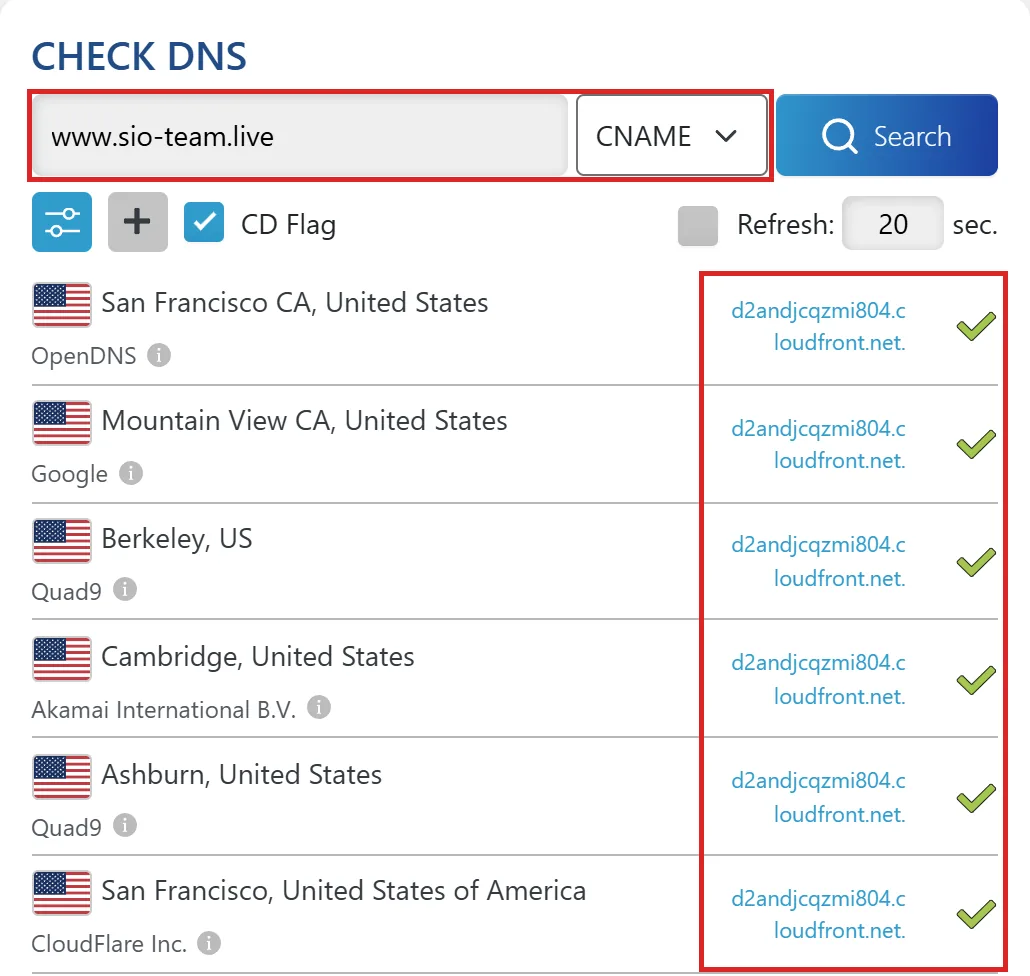
To check yours, open DNS Checker, paste in the full name of each CNAME record, including your domain, choose CNAME and search.
Every indicator should be green, with the same value systeme.io gave you. If not, the records were not entered correctly, and your DNS needs another look.
systeme.io's main article says approval can take a few hours. Its article on domains that are not approved says a domain that works and is set up properly is approved within 24 hours. Once your domain is connected, systeme.io issues and installs a free SSL certificate for it, which is what shows the padlock in visitors' browsers. If the domain is still not approved, Why is my domain still not approved after 48 hours? goes through the causes systeme.io documents.
If systeme.io shows a CAA error, it could not generate an SSL certificate for the domain, and the problem is a CAA record in the domain's DNS. The fix systeme.io gives:
- Go to Settings, then Custom domains, and remove the domain that shows the error.
- Add eight CAA records to the domain's DNS: an issue record and an issuewild record for each of amazon.com, amazontrust.com, awstrust.com and amazonaws.com. On Cloudflare, an issue record uses the tag Only allow specific hostnames, and an issuewild record uses Only allow wildcards.
- Check them on DNS Checker: search for your domain and select CAA as the record type.
- Connect the domain again, from Step 1.
Step 5. Put your pages on the domain and give it a home page
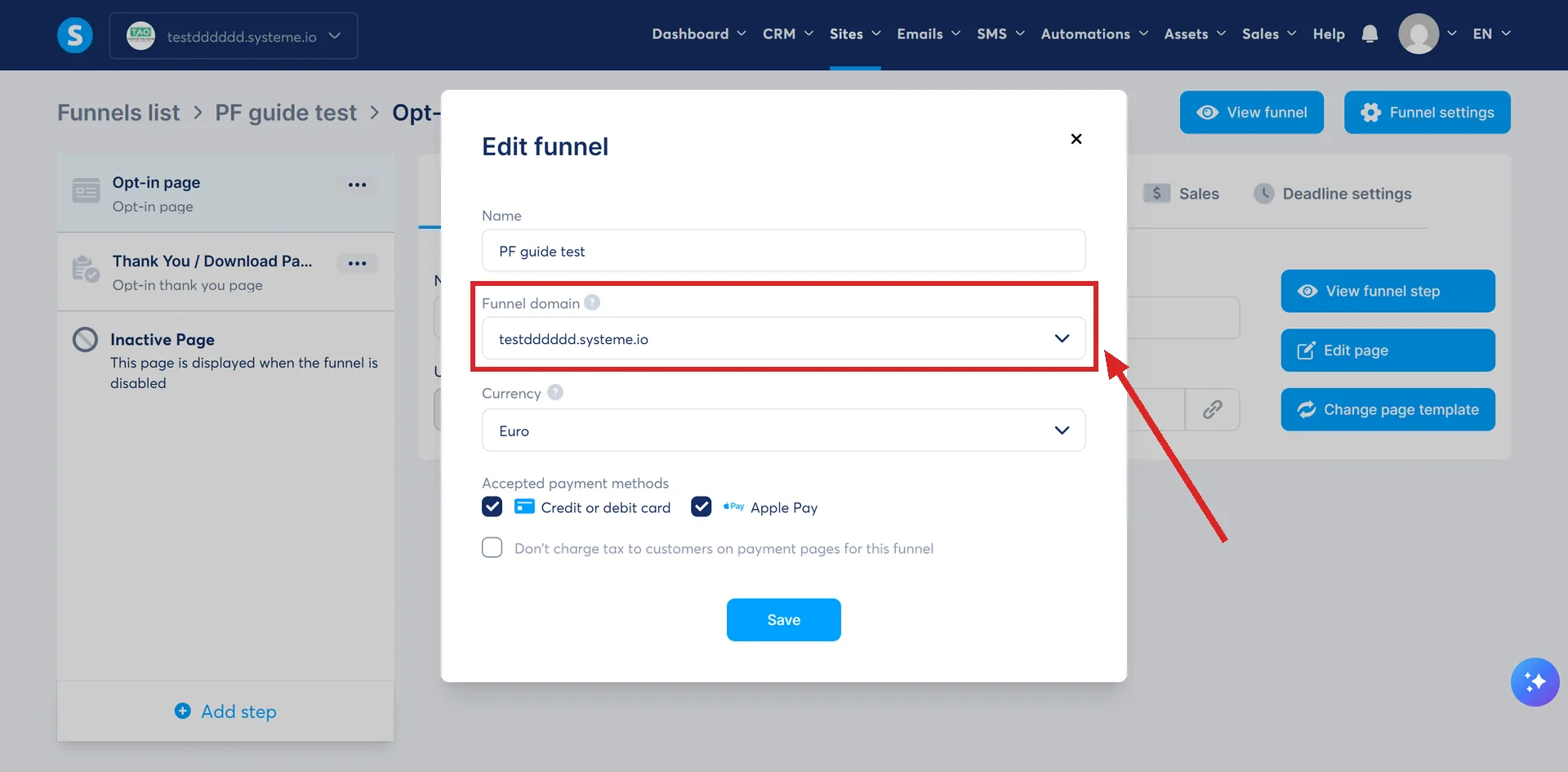
A funnel's domain is set in its settings. Go to Sales funnels, select the funnel, click Funnel settings, choose your domain and click Save. The new domain applies to every page in that funnel.
Your domain's home page can be a blog, a website, a creator store or a sales funnel page. You choose which by leaving its URL path empty.
- A blog: Sites, then Blogs, then the three dots, then Settings. Delete the text in URL path, leaving it empty, and click Save.
- A website: Sites, then Websites, then the three dots, then Settings. Empty URL path and click Save.
- A creator store: Sites, then Creator stores, then the three dots, then Settings. Empty URL path and click Save at the bottom of the page.
- A funnel page: open the page and delete the text in its URL path field. It saves automatically.
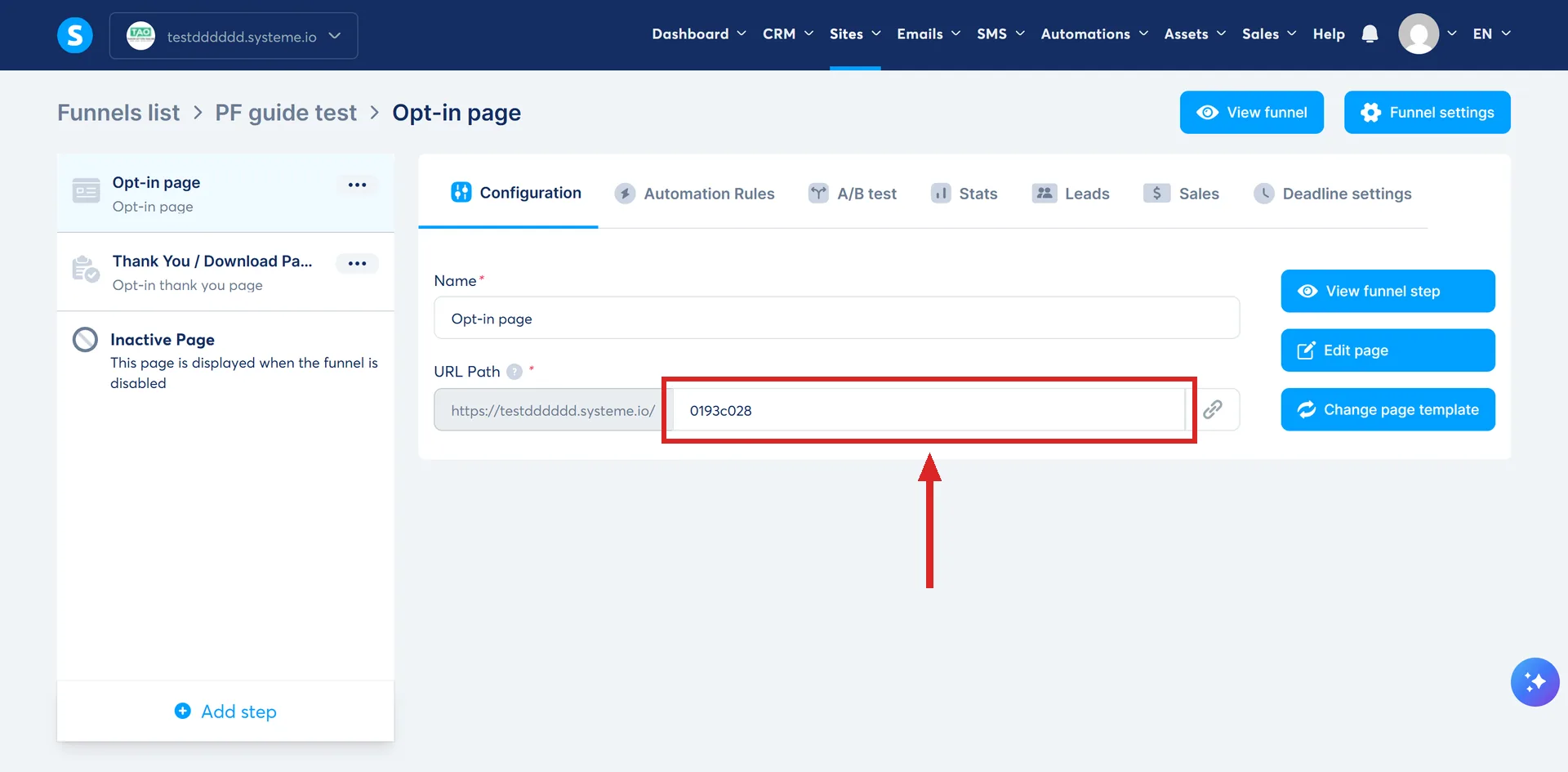
systeme.io calls defining a home page essential, so that your site can work when a visitor lands on it. If the wrong page appears, Why does my domain show the wrong page when someone types it without a path? covers what systeme.io documents.
Every connected domain also gets its own sitemap. To see it, type your domain's address into your browser and add /sitemap.xml at the end. It groups the sitemaps of the blogs and funnels on that domain, and the domain's robots.txt file points search engines to it, so there is nothing to set up for them to find it. Other assets, such as websites, are not covered yet.
Step 6. Authenticate the domain for email
Authentication is mandatory to send emails from systeme.io.
Hover over your profile picture, click Settings, then Emails. In the Domains section, click the link that begins Click here to authenticate your domain. Enter your domain without the www and click Save.
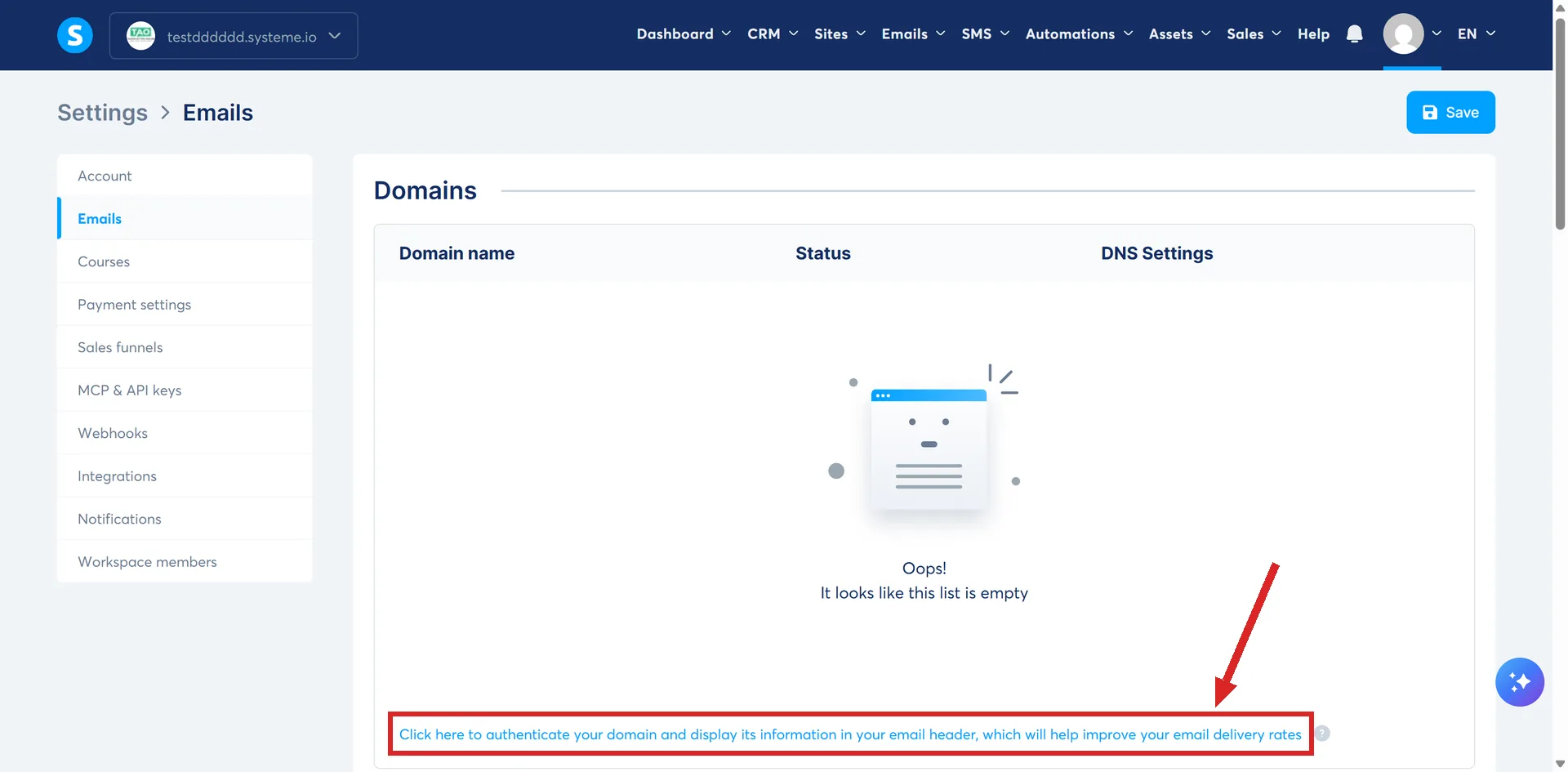
systeme.io generates three CNAME records and a DMARC record, and all of them go into your domain's DNS zone. To display the list of records, click the eye-shaped icon.
These are the values from systeme.io's worked example for the domain sio-team.live. systeme.io marks them as examples, so copy the records generated in your own account.
| Type | Name (Host) | Value |
|---|---|---|
| CNAME | si942517 | inbound.systeme.io. |
| CNAME | systemeio1._domainkey | key1.systeme.io. |
| CNAME | systemeio2._domainkey | key2.systeme.io. |
| TXT | _dmarc | v=DMARC1; p=none; rua=mailto:example@gmail.com |
Two details matter when you type the CNAME records in.
- The Name field takes only the part before your domain. If systeme.io shows si942517.sio-team.live, you enter si942517.
- The Value field ends with a full stop, according to systeme.io's main authentication article. In its example, you enter inbound.systeme.io with a full stop after it. The section on where the articles disagree has more on this.
On Cloudflare, set each CNAME record to DNS only, shown as a grey cloud. systeme.io warns that with the proxy on, shown as an orange cloud, the record may not work properly and validation of your domain can be blocked.
systeme.io's authentication article makes the DMARC record a TXT record, named _dmarc. Its DMARC article says the domain is added to that name automatically, giving _dmarc.yourdomain.com, and that if it is not, you name the record _dmarc.yourdomain.com instead.
systeme.io's example value is v=DMARC1; p=none; rua=mailto: followed by an email address. Email providers send a daily report to that address, so systeme.io recommends an address made only for these reports, to avoid flooding your main inbox.
A domain must have only one DMARC record. systeme.io warns that two on the same domain can conflict and stop the policy working correctly.
Two more rules from the authentication article.
- A domain can be authenticated in one systeme.io account or sub-account only. Once it is, it is removed from any other account where it was still pending, and adding it to another account shows an error. Can two systeme.io accounts send from the same domain? has more.
- Domains from personal email providers, such as Gmail, Yahoo and ProtonMail, cannot be authenticated.
SPF, DKIM and DMARC, in plain English explains what the records are for.
Step 7. Check the records, then contact support
Search DNS Checker for each of the three CNAME records by its full name, including your domain. A green tick next to the exact value on all three means the domain is authenticated.
If a record shows in red, check your DNS settings for errors. If you cannot fix it, contact systeme.io support and include a screenshot of your DNS records.
Check the DMARC record by searching for your domain on a DMARC checker. systeme.io's DMARC article points to MxToolbox.
The authentication article also says that in any case, you must contact support after doing this.
Step 8. Confirm an address on the domain and make it your sender
Choose an address on your domain that is a working mailbox, able to send and receive emails.
Confirm it. Click your profile picture, then Settings, then Emails. Scroll down to Verified email addresses and click Click here to confirm your email address. Enter the address and click Save. Open the email that arrives at it, click the confirmation link, then click Confirm on the page it opens. The address then shows as Verified.
The authentication article says this step is required: to send from an authenticated domain, you must confirm the sender address on it.
Then make it your default sender. On the same Emails settings page, the Email address field in the Sender section is a drop-down: choose the address there and click Save.
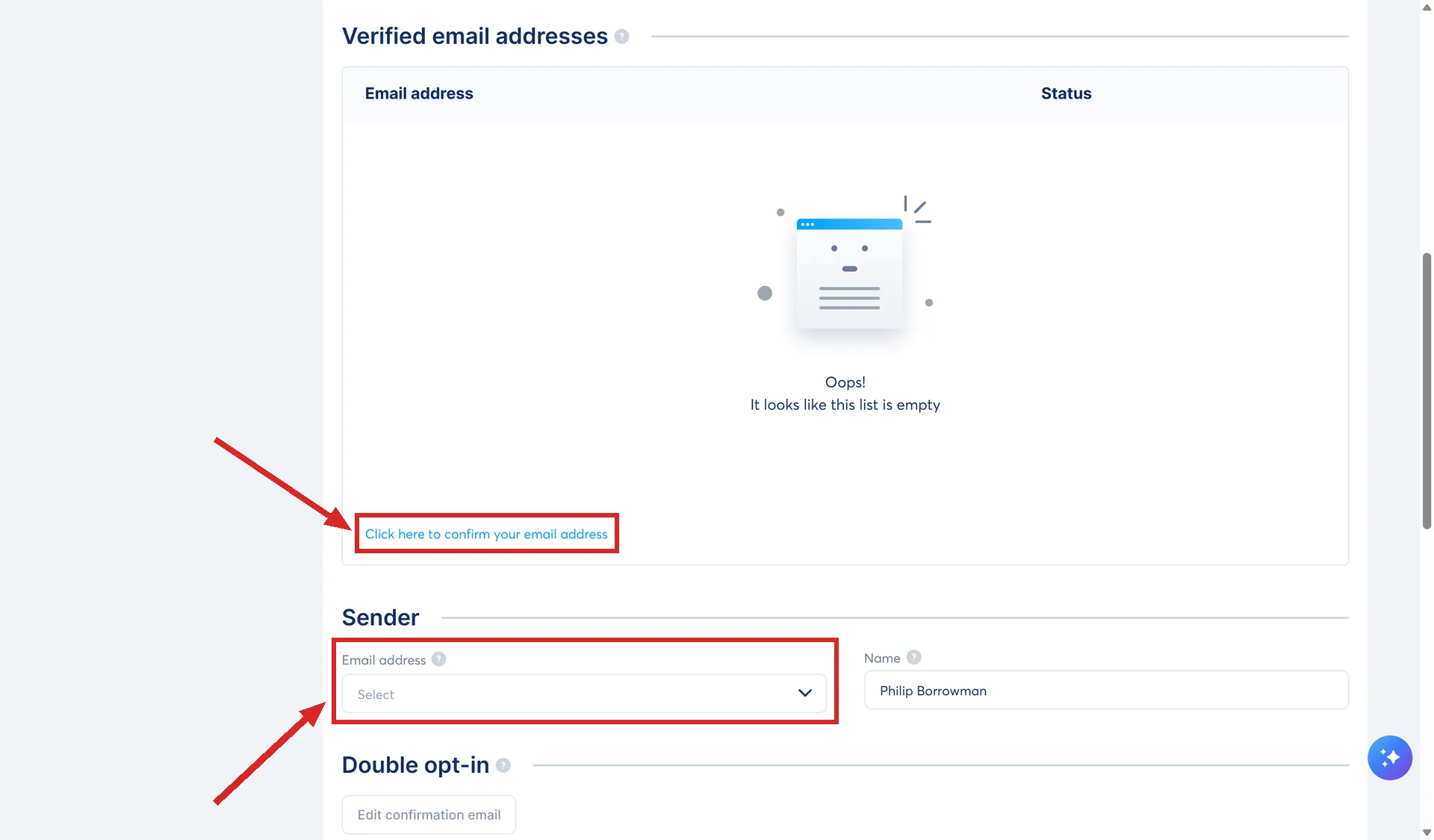
That setting covers transactional emails, such as login details and invoices, as well as your newsletters and campaigns. It only affects new emails. Emails you have already created, such as active automations and scheduled campaigns, keep the old address until you change each one by hand.
Step 9. Start sending gently
systeme.io takes precautions with new accounts. It sends a first email to 100 contacts, then pauses sending to check the early statistics. That check can last from a few minutes to six hours, depending on the volume of emails to process. If the results are satisfactory, the next 100 go out, and the check repeats after every 100 until 500 emails have been sent. If they are not, the account is moved to the quarantine group. Resending an email while it is pending is unnecessary.
For your own sending, systeme.io's advice for the first days is to start with small quotas and increase the volume gradually. It says abrupt changes in volume are read as abnormal behaviour. It also says to send at a regular rhythm, not in bursts. Another of its articles advises sending to your most engaged contacts first, the people who regularly open and click.
Once the domain has a good reputation, keep it. systeme.io's advice is not to change a domain or email address that has one. If you have to change for deliverability reasons, it says to warm up again and start sending gradually. If I change my sending domain, do I start from scratch? goes further, and How often should I email a list that is brand new? covers the rhythm.
Where systeme.io's articles disagree
- How many CAA records. The CAA error article lists eight. Hostinger's article asks for ten, and its last two name SomeCA.com, which the CAA error article does not mention.
- The full stop at the end of a value. The authentication article says to add one. The Cloudflare version of that article enters inbound.systeme.io with none, and the GoDaddy connection article enters its www value with none. The main connection article warns that some hosts do not accept one at all.
- Hostinger's redirect. The main article and the first line of Hostinger's own step call it an ALIAS record. The Hostinger article's instructions then say to select the type CNAME.
- The DMARC record type at Infomaniak. The Infomaniak authentication article says to select TXT for the DMARC record, as systeme.io's DMARC article does. The Infomaniak DMARC article says to select DMARC as the record type.
- Whether to contact support after authenticating. The authentication article says you can contact support for a check on their end if you want, and a few lines later that in any case you must contact support after doing it.
What I do after adding the records
This part is my own experience, not something systeme.io documents.
I have bought dozens of domains over the last decade, and changing DNS settings always makes me nervous. Things do break.
Most of my problems came from adding records to a domain that already had lots of them: email records, subdomains and all sorts. More than once I missed an existing record that conflicted with the one I was adding. Sometimes it was an old record from a move, from SiteGround to Namecheap for example, that I had added years before and forgotten about.
The part I find most frustrating is that you do not find out about a mistake straight away. DNS changes take a few hours to come through, so even records you added correctly look wrong for the first few hours. If you did make a mistake, it can be 24 hours before you can be sure. Then you make your changes and wait another 24 hours. It feels panicky, because it is out of your control.
So my advice is this. As soon as you have added your records, contact your domain host's support team. Show them the instructions you followed, which for me are systeme.io's, and ask two things: have I added these correctly, and are there any records on this domain that conflict with them?
A brand new domain usually has no old records in the way, but even that is not certain. I have had a new domain at GoDaddy come with default DNS records that I did not know I had to delete. Namecheap adds default records too, but in my experience they are removed automatically when you add your own. Small differences like these are the ones you only find out about by getting something wrong.
Where to go next
With the domain connected and a sender address confirmed, the lead magnet funnel guide builds a first funnel on it, from the opt-in page to the first email.
How I checked this guide
Nothing on this site is written from memory. These are the sources I checked to write this guide, and the date I checked them.
- The free DNS setup pagesysteme.io/free-dns-setup
- How to connect your domain to systeme.iohelp.systeme.io, article 135
- How to authenticate your domain name for email sendinghelp.systeme.io, article 316
- General guidelines and best practices for email deliverability during the first few dayshelp.systeme.io, article 4247
- How to request a free DNS setup from systeme.io supporthelp.systeme.io, article 10278
- Integrating your subdomain with systeme.iohelp.systeme.io, article 142
- How to resolve the CAA error when connecting your domainhelp.systeme.io, article 248
- The Custom domains settings screen, captured by Philip on 15 September 2026A live systeme.io account
- My domain name is not approvedhelp.systeme.io, article 347
- How to connect your Cloudflare domain to systeme.iohelp.systeme.io, article 4237
- How to authenticate your domain name on Cloudflarehelp.systeme.io, article 4240
- How to add a DMARC record on Cloudflarehelp.systeme.io, article 4239
- How to connect your GoDaddy domain to systeme.iohelp.systeme.io, article 141
- How to authenticate your domain name on GoDaddyhelp.systeme.io, article 3933
- How to add a DMARC record on GoDaddyhelp.systeme.io, article 3931
- How to connect your Hostinger domain to systeme.iohelp.systeme.io, article 4262
- How to authenticate your domain name on Hostingerhelp.systeme.io, article 4258
- How to add a DMARC record on Hostingerhelp.systeme.io, article 4257
- How to connect your Infomaniak domain to systeme.iohelp.systeme.io, article 3944
- How to authenticate your domain name on Infomaniakhelp.systeme.io, article 3942
- How to add a DMARC record on Infomaniakhelp.systeme.io, article 3943
- How to connect your IONOS domain to systeme.iohelp.systeme.io, article 3962
- How to authenticate your domain name on IONOShelp.systeme.io, article 3965
- How to add a DMARC record on IONOShelp.systeme.io, article 3964
- How to connect your LWS domain to systeme.iohelp.systeme.io, article 4344
- How to authenticate your domain name on LWShelp.systeme.io, article 7851
- How to add a DMARC record on LWShelp.systeme.io, article 4342
- How to connect your Namecheap domain to systeme.iohelp.systeme.io, article 4228
- How to authenticate your domain name on Namecheaphelp.systeme.io, article 4234
- How to add a DMARC record on Namecheaphelp.systeme.io, article 4233
- How to connect your OVH domain to systeme.iohelp.systeme.io, article 145
- The Advanced DNS page of a domain, captured by Philip on 15 September 2026A live Namecheap account
- A CNAME lookup for www.sio-team.live, 15 September 2026A lookup on dnschecker.org
- How to change a funnel's domain namehelp.systeme.io, article 345
- A funnel in the demo account, captured on 15 September 2026A live systeme.io account
- How to define your domain's homepagehelp.systeme.io, article 143
- How to access your domain's sitemaphelp.systeme.io, article 11336
- The Emails settings page, captured on 15 September 2026A live systeme.io account
- How to create a DMARC recordhelp.systeme.io, article 2241
- How to confirm your email sender addresshelp.systeme.io, article 2070
- How to change the sender's email addresshelp.systeme.io, article 278
- Why aren't my emails being sent?help.systeme.io, article 227
- Why did my open rate change after switching to Systeme.io ?help.systeme.io, article 3733
Checked on
Did this guide help?
Answers this guide leans on
- Why is my domain still not approved after 48 hours? Missing www, a blocked SSL certificate, or a CNAME your host would not add.
- SPF, DKIM and DMARC, in plain English Three DNS records, what each one proves, and exactly what systeme.io hands you to paste.
- What does "domain root" mean and why does systeme.io keep asking? One word, two different fields. Which of them you are being asked for.