A lead magnet funnel, from opt-in to first email
A two-page funnel in systeme.io. An opt-in page that collects email addresses, a thank-you page that hands over your freebie, a tag on every new subscriber, and a first email that sends itself.
Before you start
Have two things ready before you open systeme.io.
- The freebie itself, as a file. A PDF is the usual choice. Keep it to 5 MB or less if you also want to attach it to an email, because that is the limit systeme.io sets on attachments.
- A confirmed sender address. Confirm the address you will send from, unless it is the one you log in to systeme.io with, which you do not need to confirm yourself. Click your profile picture, then Settings, then Emails, and scroll to Verified email addresses. Click "Click here to confirm your email address", type the address into the popup and click Save. Open the email that arrives at that address, click the confirmation link, then click Confirm on the page it opens. The address shows as Verified once that is done. systeme.io's instructions list an address on your own domain as the thing you need. What a sender address is, and why it matters so much, has its own answer.
Step 1. Create the funnel
Go to Sites, then Sales funnels, then Create. Give the funnel a name, pick the domain it will live on and its currency, then choose your funnel goal. Choose Build an audience. systeme.io calls it its simplest funnel: an opt-in page and a thank-you page, meant for growing an email list. That is the whole funnel this guide builds, so both pages are already in place when you start.
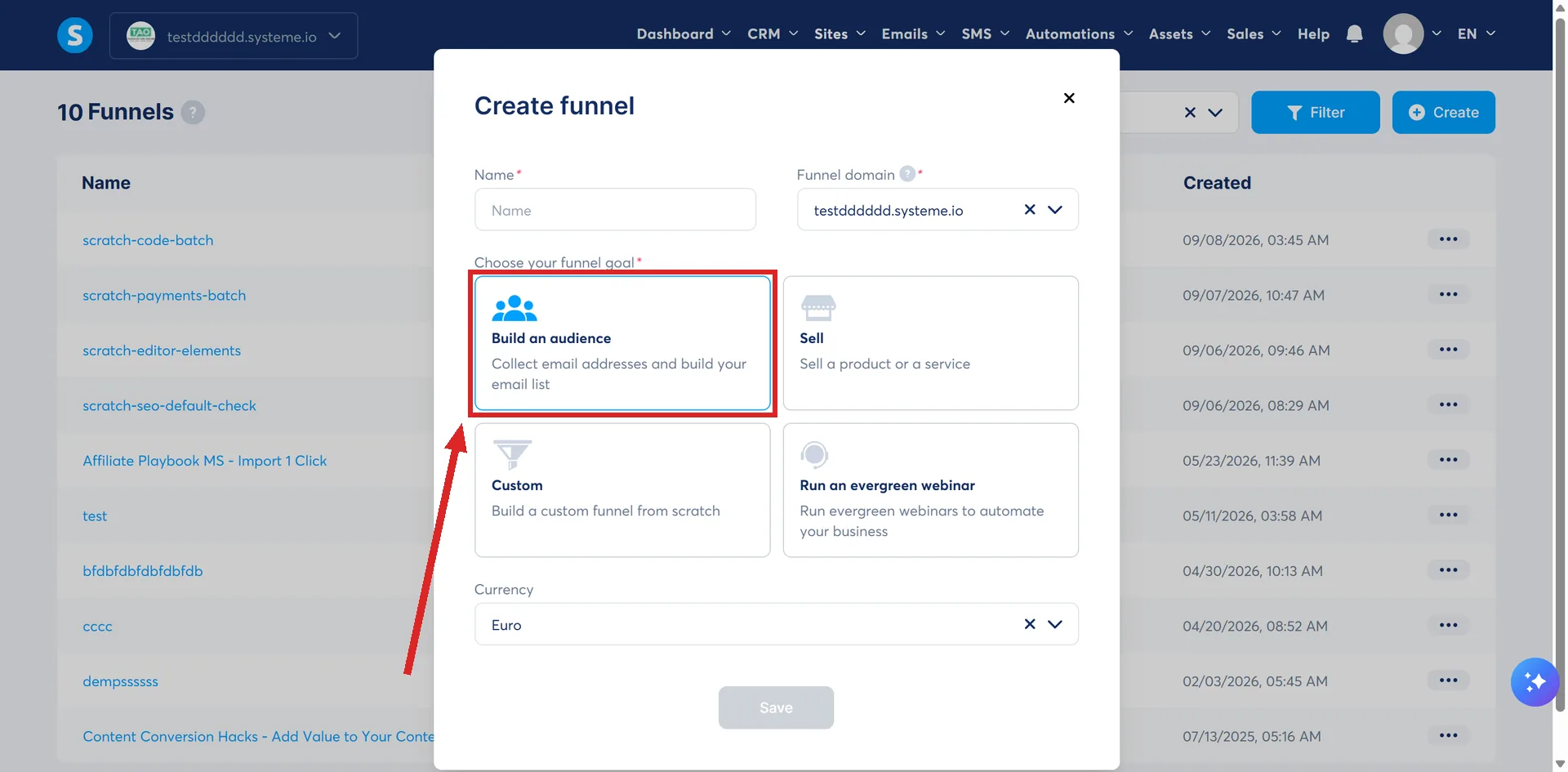
In a funnel made for this guide, the step list then showed three steps: Opt-in page, Thank You / Download Page, and an Inactive Page, which is only shown while the funnel is switched off.
The opt-in page is what marketers call a squeeze page. If you want to know why two pages is enough, what a simple funnel needs covers it.
Step 2. Set up the form on the opt-in page
Open the Opt-in page step. A new page has no design yet, so systeme.io shows a gallery of templates first: pick one with the tick in its top corner, and an Edit page button appears. Click it. Whatever the template put on the page, check two things before you change anything else.
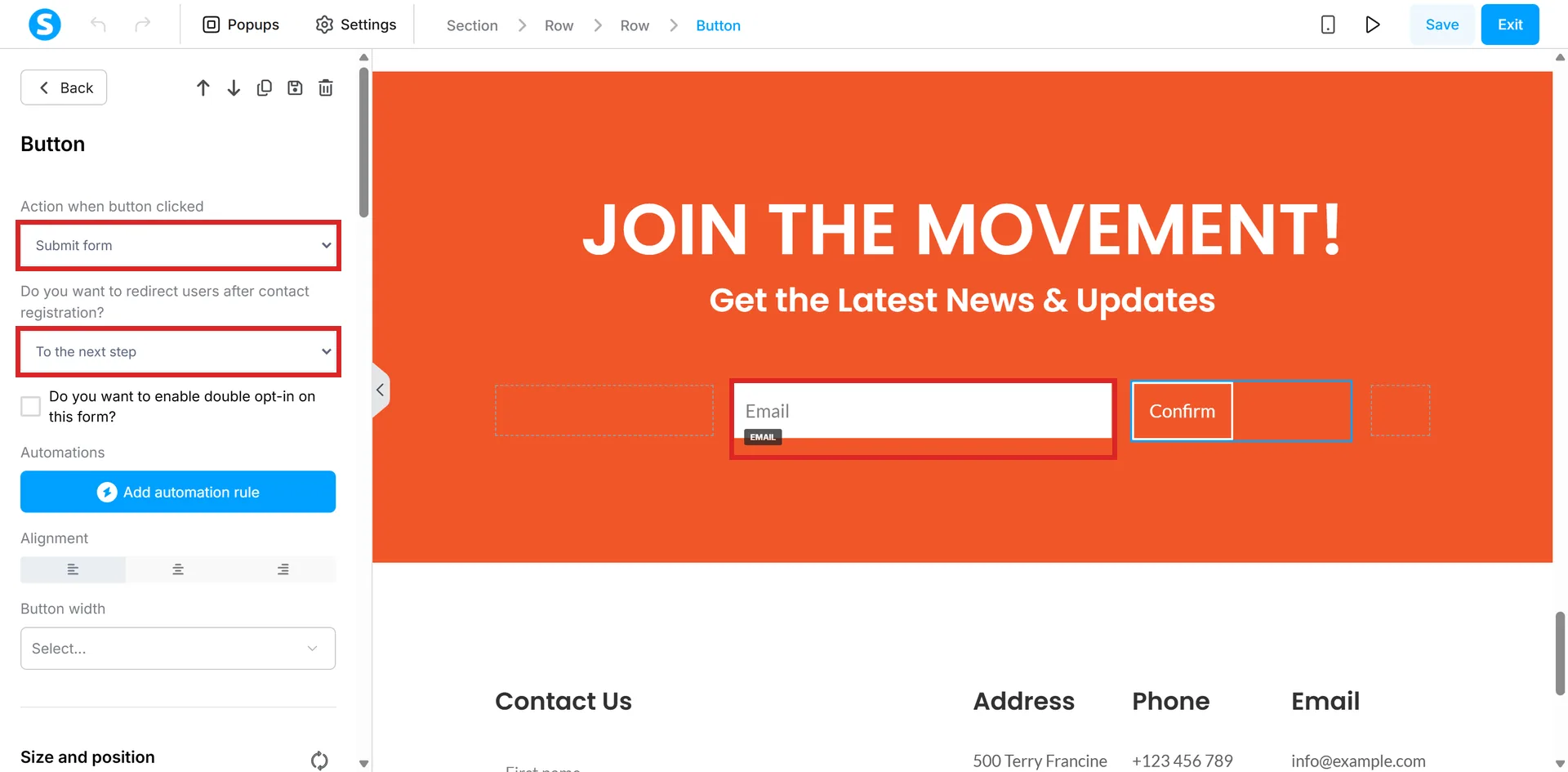
- The form has an Email field. A form captures leads only if it contains at least one field whose Input type is Email. To add one, drag the Form input element from the Form section of the sidebar onto the page, click it, and set its Input type to Email. You can add more fields the same way if you want more than an email address.
- The button submits the form. Click the button. Its Action when button clicked must be set to Submit form, or nobody is added to your contacts. Then set "Do you want to redirect users after contact registration?" to To the next step. That sends each new subscriber on to your thank-you page.
Some templates use a Form element instead: one block that holds the fields, any tick boxes and the submit button together. Click it and its settings open in tabs on the left. The Actions tab decides what happens after someone submits: No redirection, or Custom URL to send them to another page, such as your thank-you page. The double opt-in box for that form is there too.
If you save and see "At least one email input is required on this page", systeme.io's help centre says the usual cause is a button set to send the form on a page with no field whose Input type is Email. That error has its own answer, including the two names the help centre uses for this one button setting: Send form in one article, Submit form in the others.
Step 3. Put the freebie on the thank-you page
Open the Thank You / Download Page step. It asks for a template first too, then offers Edit page. The page needs a way to hand over the file, and a button does it.
- Drag a Button element onto the page, or use a button the template already has.
- In its settings, set the action to Download file.
- Click the cloud-shaped button at the end of the File box, upload your file or pick one already in your account, and click Insert.
- Click Save, then Preview, and press the button to make sure the file downloads.
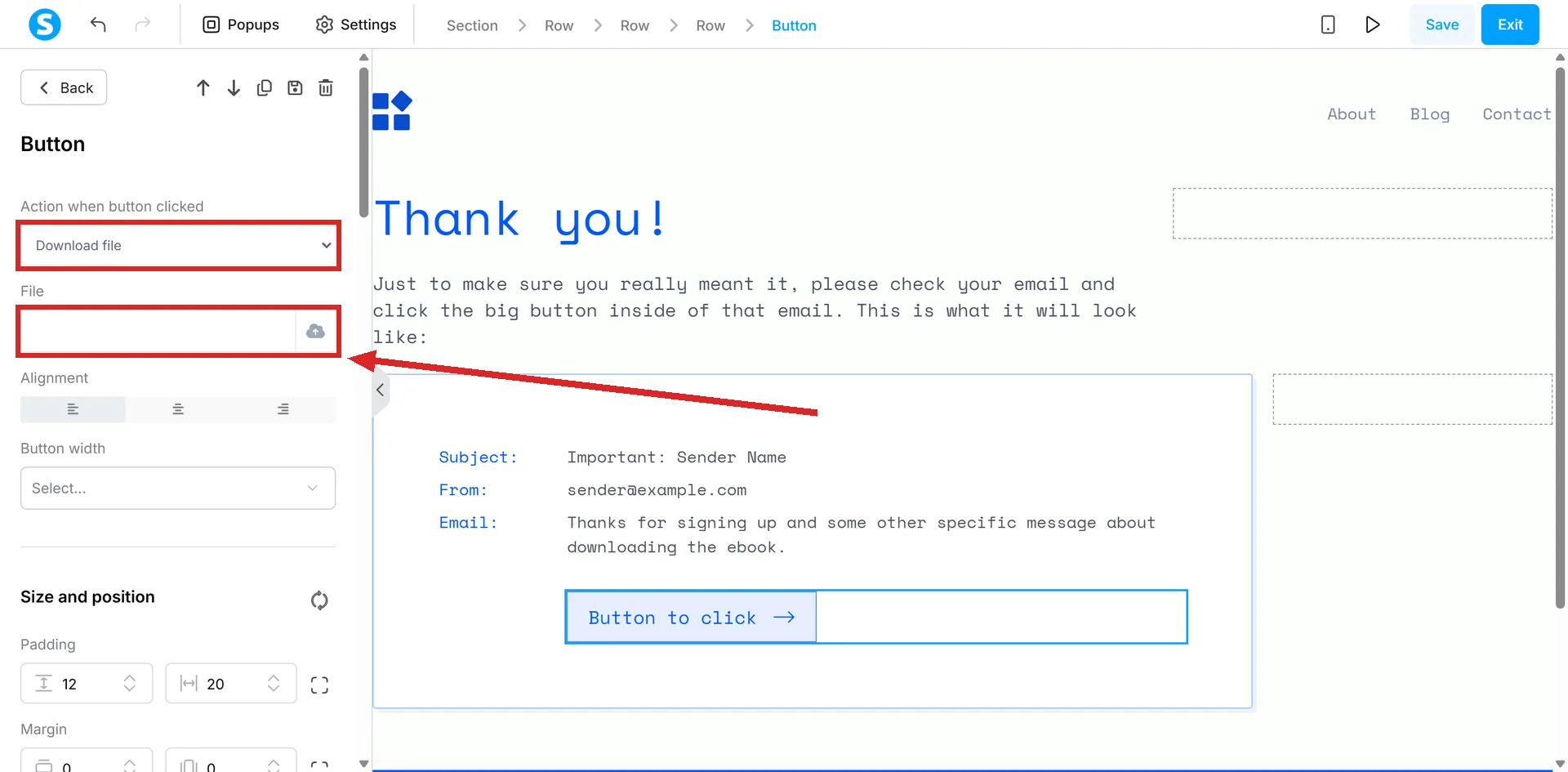
Take care with Save. systeme.io says that once changes are saved, the old version of the page cannot be restored.
A text link works too, if you would rather write a line such as "Download the checklist". Select the words, click the link icon, then the arrow next to the link field. Upload the file there, then click Insert and Confirm.
Then tick Hide from search engines. The download sits on this page, and it should not turn up in search results for people who never signed up. In the editor, click Settings at the top left of the panel and scroll to the Search Engine Optimization (SEO) section.
Look before you assume. systeme.io's help centre says pages start out hidden, but on a new thank-you page built for this guide on 11 September 2026, the box was empty. Tick it if yours is empty too. What the SEO section is for covers why the box and the page do not always agree.
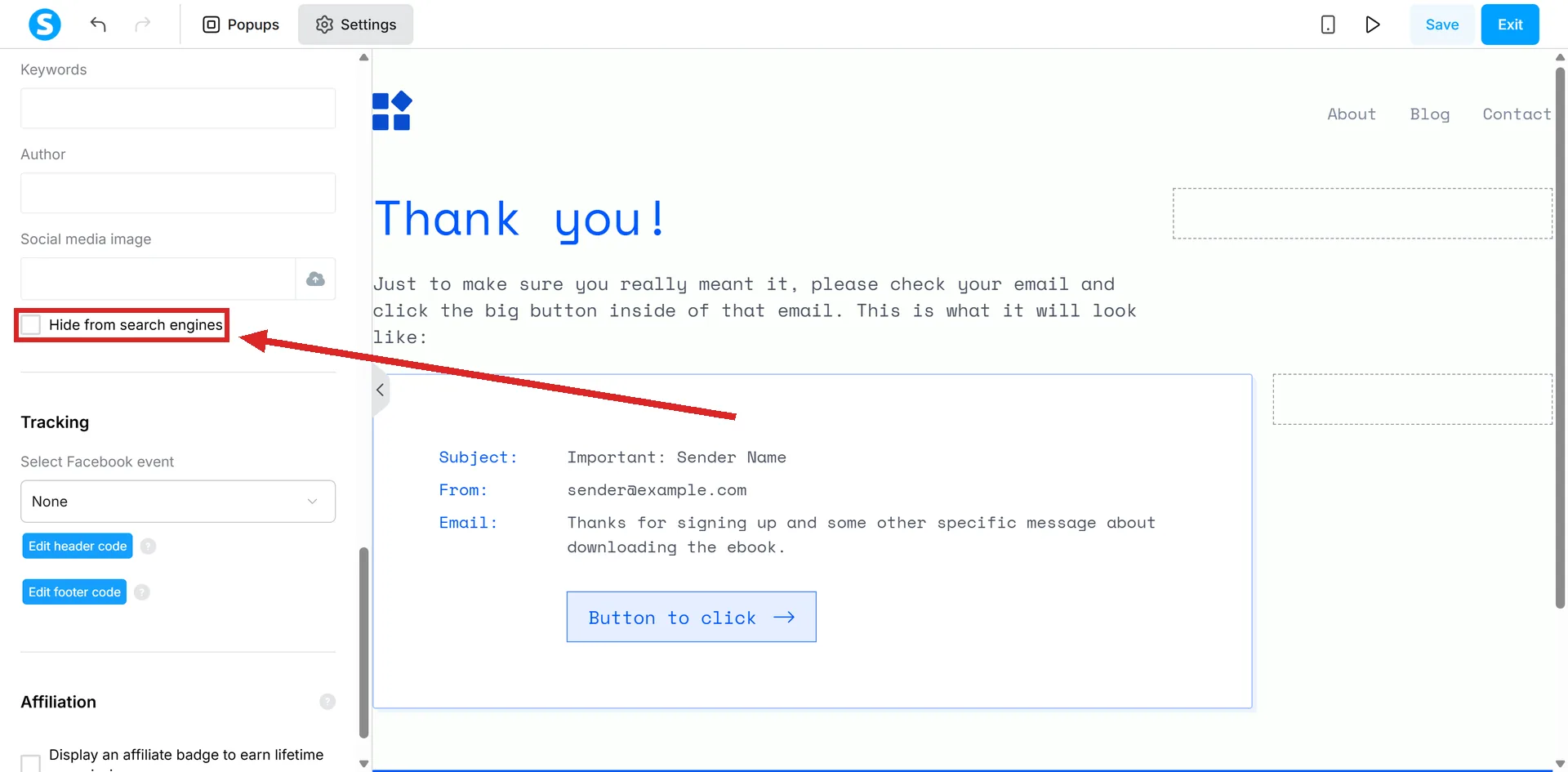
Ticked, the box asks search engines to leave the page out. It is not a lock on the file. When this site tested a file uploaded to systeme.io on 5 September 2026, its address opened for anyone who had it, with no login. Whether an uploaded file is private has the details, and what that test did not cover. There is more on what else this page can do in what a thank-you page is for.
Step 4. Tag every new subscriber and send the first email
This is one automation rule, set on the opt-in page itself.
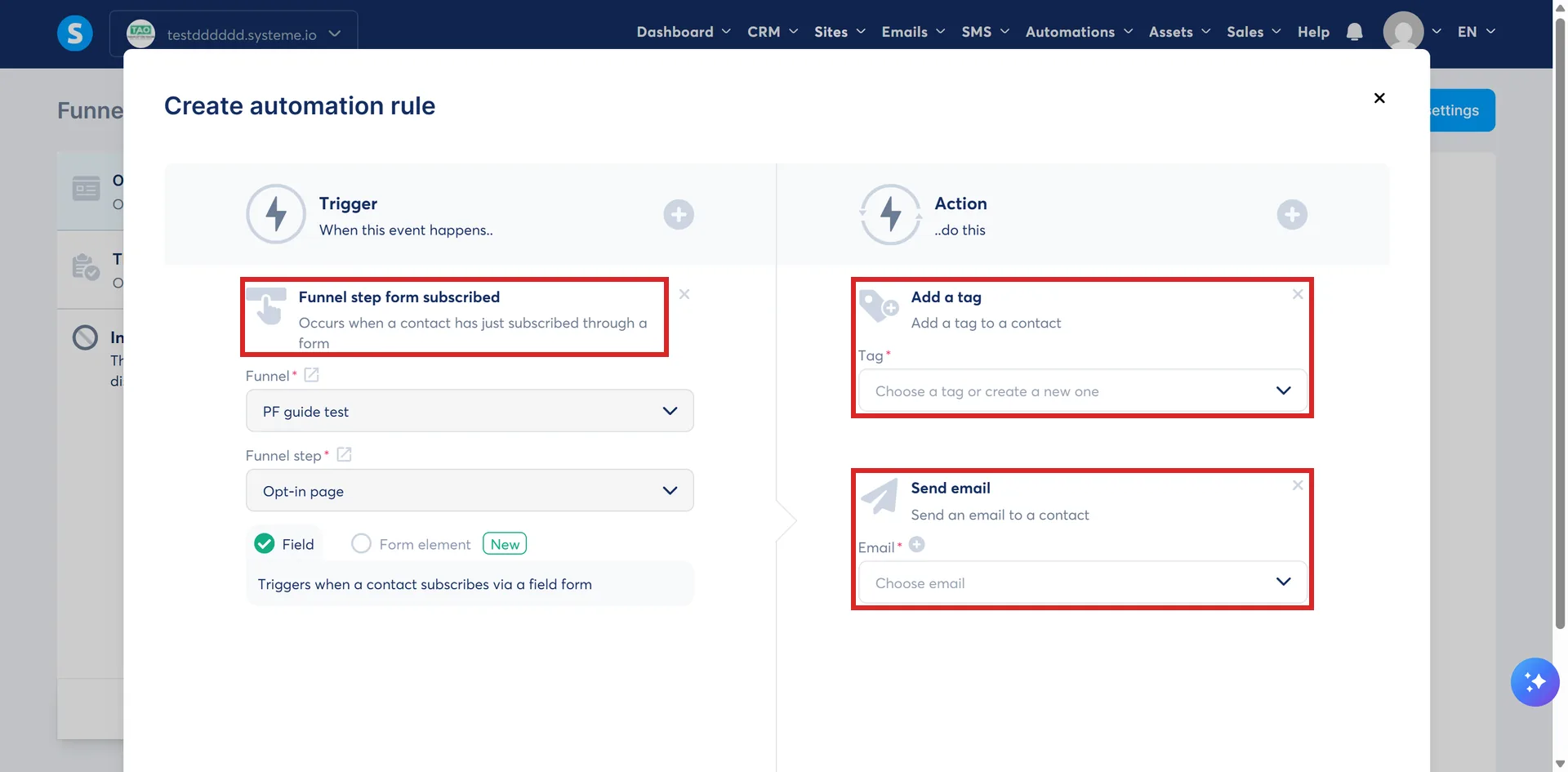
- In the funnel, select the opt-in page in the list on the left. Open the Automation Rules tab and click Add rule.
- Under Trigger, click the + icon and choose Funnel step form subscribed. This is the trigger that starts the rule when someone signs up on this page. systeme.io fills in the funnel and the step for you, and asks which kind of form to listen to: Field, for separate fields and a button, or Form element.
- Click the + icon to add an action, and choose Add a tag. Type a name for it, such as the name of your freebie. There is no need to create the tag first: a tag typed into a rule is created for you.
- Click the + icon again and choose Send email, then click + to write the email. Tell them what they signed up for and give them the download link. You can also attach the file if it is 5 MB or less. systeme.io shows an attachment as a link at the end of the email, not as a file inside it.
- Save the email, then click Save rule. The rule is active from that moment.
The download link is the file's own address. Click the download button you made in Step 3 and copy the address from your browser.
You can also add variables to the email, which systeme.io fills in with each contact's own details when it sends.
If your form is separate fields and a button, this is the second reason that button has to be set to Submit form: systeme.io states that the rule only fires from a form submitted that way.
The tag is how you find these people later and send them the right things. systeme.io makes the same point: without tags you cannot send a newsletter to one group of contacts and not the rest. What a tag is actually for goes further, and what an automation rule does explains the trigger and action idea behind this step.
Step 5. Decide on double opt-in
Double opt-in sends every new subscriber a confirmation email, and they only count once they click the link inside it. Whether to turn it on has its own answer. Two things change how this funnel behaves if you do.
- Everything waits. Every email and automation is paused until the subscriber confirms. The tag and the first email from Step 4 both wait for that click.
- Unconfirmed contacts are deleted. Anyone who does not click within 24 hours of signing up is removed automatically.
It is switched on per form, not for the whole account. Open the page editor, click the gear icon on the button, and tick "Do you want to enable double opt-in on this form?". On a Form element, the Double opt-in box is in its Actions tab instead. The confirmation email itself is edited under your profile picture, then Settings, then Emails, in the Double opt-in section.
The tick box is in the same button settings as Step 2, directly under the redirect question. You can see it, unticked, in that picture.
Step 6. Test it the way a subscriber would
systeme.io's own advice is to register on your own opt-in page, so do that. Sign up with a different address from the one you send from. systeme.io recommends a separate address for its test emails, to avoid deliverability problems, and the same care makes sense here.
Do not reach for the Save and test button. It is for newsletter and campaign emails, and systeme.io says that, for now, you cannot send a test of an email created inside an automation rule. So to see your first email arrive, sign up for real. That also shows your variables filled in, which test emails do not.
After signing up, check each part in turn.
- The thank-you page appeared, and the file downloads from it.
- The email arrived, and its link or attachment works.
- The contact carries the tag. Open CRM, then Tags, and click the tag: your contacts list filters to everyone who has it.
If you turned on double opt-in, click the confirmation link before you look for the email and the tag. systeme.io pauses every email and automation until the subscriber confirms.
One number on the Tags page misleads people. The Total column counts every contact who has ever had the tag, including anyone it was later removed from, so it can be higher than the number of contacts carrying it today.
If the email never arrives or the contact is not added, systeme.io's own article points you to its support team. For testing the rest of a funnel, including a sale, how to test a funnel covers the lot.
How I would make it convert
This part is my own advice from building these pages. Where it mentions a systeme.io setting, that setting's source is in the list at the end.
An opt-in page has one job: getting the email address. Anything on it that does not help with that job is a reason for the visitor to leave.
Take the logo off. Your visitor already knows whose page this is, because they clicked a link you put somewhere. A logo takes the most valuable space on the screen and tells them nothing about what they get.
Cut the fluff and the big images. No welcome paragraph, no life story, no stock photo, no list of qualifications. Every line either tells them what they get, or it goes.
Make the headline about their outcome. It is the first thing anyone reads, and plenty of people read nothing else. Say what they get and what it does for them, in the words they would use themselves.
A short lesson in headlines. Two questions sort a weak headline from a strong one. Could a stranger tell what they get from the headline alone? And does it contain something specific: a number, a format, a length of time?
| Weak | Strong |
|---|---|
| Welcome to my free guide | The one-page checklist for launching your first online course |
| Sign up for my newsletter | One tested dinner recipe every Friday, ready in 30 minutes |
| Unlock your full potential | Write your first sales email in an afternoon, with a fill-in template |
| The ultimate fitness guide | A four-week home workout plan for beginners, with no equipment |
The weak ones talk about you ("my guide", "my newsletter") or promise something nobody can picture. The strong ones name the thing and the result, so the reader can see it before they sign up.
Check it on a phone before you share it. What looks balanced on a laptop can push your headline or your button out of sight on a phone. I learned this on this very site. The caricature of me at the top of the home page sat neatly beside the headline on a laptop. On a phone it dropped underneath and pushed the first answer more than a full screen down, so a visitor saw a headline, a paragraph and my face, and not one answer until they scrolled. On phones it now sits below the latest answers instead.
systeme.io has a mobile view for exactly this. Click the mobile icon at the top of the editor. Settings marked with a mobile icon change only the phone layout, and the Item visible on checkboxes let you hide an element on mobile, a big image for example, while keeping it on desktop. Why pages break on mobile goes further.
Where to go next
One email is a start. When you want a series of them, a campaign sends several emails in order: the same trigger, Funnel step form subscribed, with the action Subscribe to campaign in place of Send email. Is a sequence the same thing as a campaign? sorts out the words, and the welcome sequence guide builds one, starting from the rule you have just made.
How I checked this guide
Nothing on this site is written from memory. These are the sources I checked to write this guide, and the date I checked them.
- How to confirm your email sender addresshelp.systeme.io, article 2070
- How to create a funnelhelp.systeme.io, article 147
- How to build your contact list using a funnelhelp.systeme.io, article 1602
- How to add a form field and a form element to your pagehelp.systeme.io, article 1662
- Why am I seeing the "At least one email input is required" error?help.systeme.io, article 623
- How to host and share files on systeme.iohelp.systeme.io, article 2506
- How to add a downloadable filehelp.systeme.io, article 340
- How to control your page's visibility on search engineshelp.systeme.io, article 617
- What is the "Search Engine Optimization (SEO)" section for?help.systeme.io, article 510
- How to automatically send an email when a lead subscribeshelp.systeme.io, article 280
- How to deliver digital products via email after a salehelp.systeme.io, article 294
- How to create a taghelp.systeme.io, article 303
- How to set up double opt-inhelp.systeme.io, article 271
- How to send a test emailhelp.systeme.io, article 290
- How to automate the sending of an email sequence (email campaign)help.systeme.io, article 284
- How to fix the mobile version of my pagehelp.systeme.io, article 270
- A new Build an audience funnel made for this guideA live systeme.io account
- An uploaded file's address, opened with no login on 5 September 2026A live systeme.io account
Checked on
Did this guide help?
Answers this guide leans on
- What is a squeeze page? The common name for a page systeme.io calls something else. And the two elements it needs.
- What is double opt-in, and should I turn it on? One extra click before a subscriber counts, and a 24-hour clock on the ones who ignore it.
- What is a tag actually for? A label on a contact. Nothing gets sent to anybody without one.