Write and automate a welcome sequence
A campaign of welcome emails in systeme.io that every new subscriber joins by themselves. The emails go out in order, on the days you set, and each one is tested before a real subscriber gets it.
Before you start
Have four things ready.
- An opt-in page that works. A sequence needs people to send to, and they arrive through a form. If you do not have one yet, the lead magnet funnel guide builds it, from the page to the first email.
- A confirmed sender address. Every campaign asks which address it sends from, and systeme.io will not save one without it. What a sender address is covers confirming one.
- An address for test emails. systeme.io sends test emails to an address set in your email settings, and recommends one that is different from your sender address. Click your profile picture, then Settings, then Emails. Confirm the address under Verified email addresses, then choose it under Email address in the Testing section on the same page.
- A rough plan. How many emails, and how far apart. This guide uses four emails as its example. systeme.io publishes no rule on how often to send. Its advice to a new sender is about overall volume: start small and keep a regular rhythm rather than sending in bursts. How often to email a new list goes further.
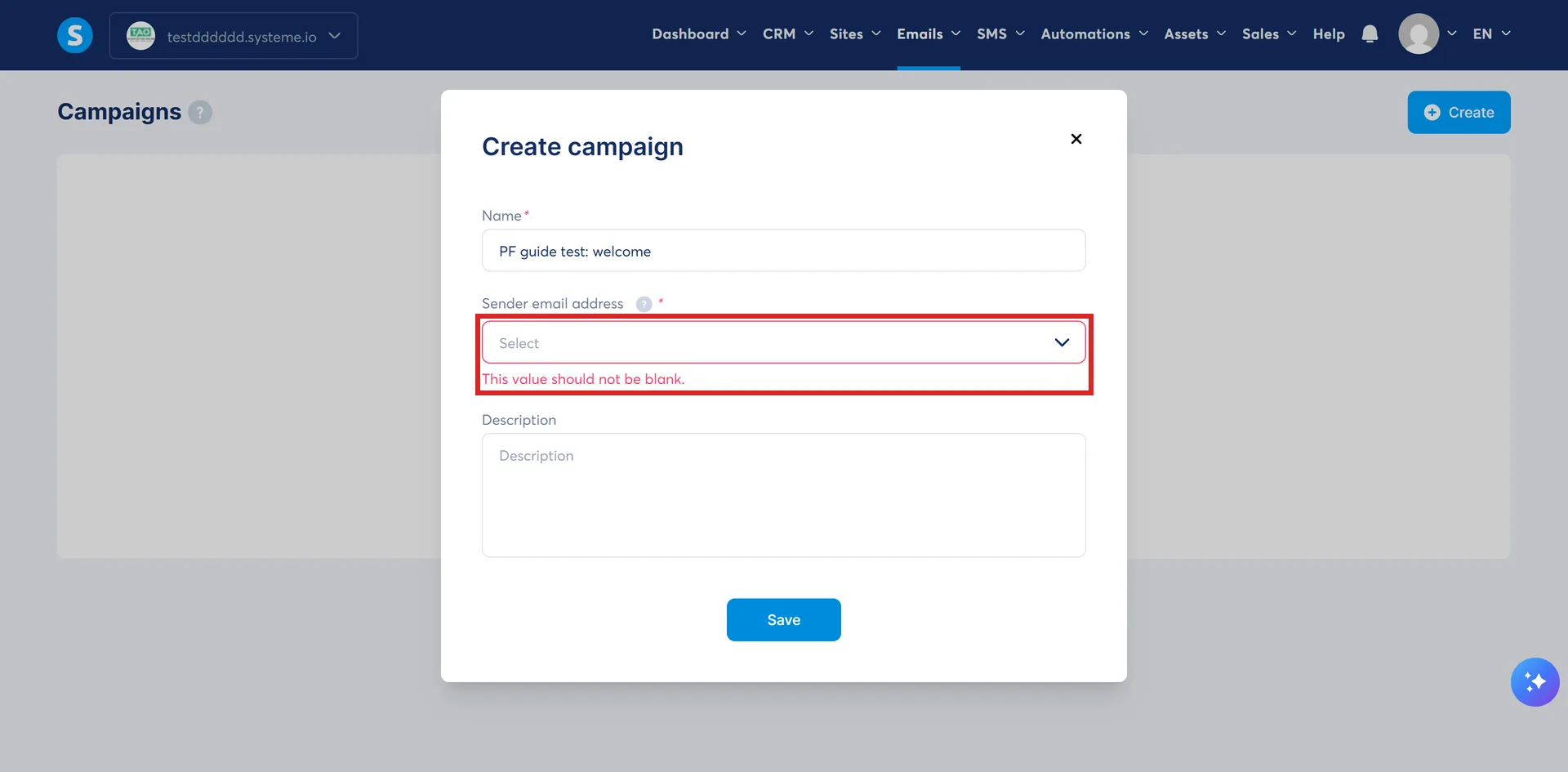
An address can show as Verified and still be missing from that list. When this guide was written, an address confirmed in a second account was left out, and systeme.io's reason was that another account had already authenticated its domain.
Step 1. Create the campaign
systeme.io calls a sequence a campaign, so that is the word to look for. Is a sequence the same thing as a campaign? has the other names it uses.
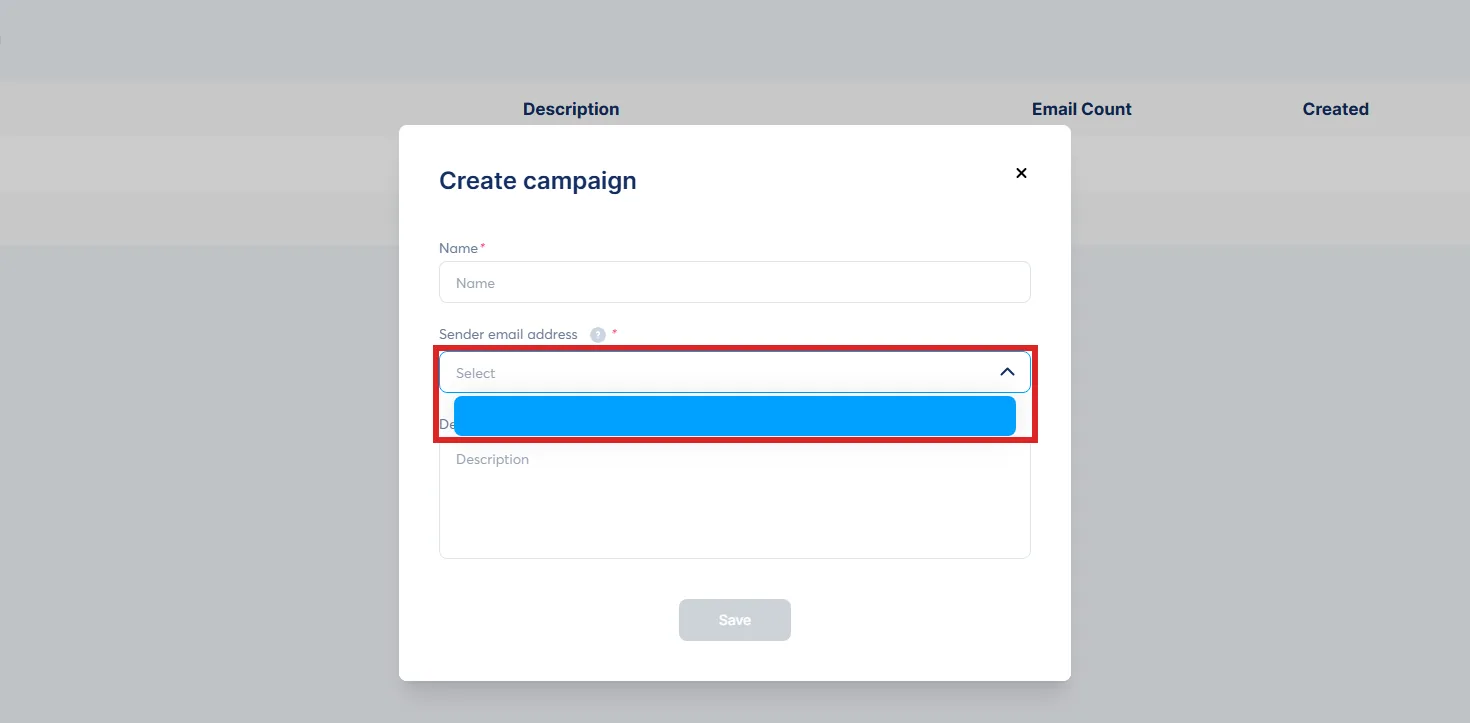
Go to Emails, then Campaigns, then click Create. The Create campaign popup asks for a name, a sender email address and a description. The first two are required and the description is optional. Fill them in and click Save. A notification appears once the campaign exists.
Step 2. Write the first email
Click the campaign's name to open it, then click Create. The popup asks for four things:
- A subject.
- A sender name.
- A sender email address.
- The editor type: Classic editor or Visual editor.
Click Save, and the editor opens.
Choose the editor before you write a word. systeme.io warns that if you change editors while working on an email, the content you have written is lost. The classic editor is for writing a simple, text-based email. The visual editor is a drag-and-drop canvas like the page editor, with a phone view for checking how the email looks on mobile. Classic or visual compares the two.
Then write the email. Two habits help it arrive.
- Keep it light. Text, fonts, font colours, images, emoticons and layouts are all coded into the email as HTML. systeme.io warns that using too much of them can weigh an email down, that a heavy email may be hard for receiving servers to deliver, and that it is more likely to be marked as spam or rejected.
- Keep the links plain. systeme.io discourages shortened links on deliverability grounds: where a link leads should be clear in the email itself. It also says a link's domain must match the domain you send from, which it calls the most optimal format.
The download link in the lead magnet funnel guide is the file's own address, which is not on your domain. If your funnel's pages are on your own domain, linking to your thank-you page, where the download button is, keeps the link there.
In the classic editor, the panel on the right also holds attachments and variables. A variable is replaced with the contact's own details when the email goes out.
Step 3. Set when it sends
In the classic editor, the timing settings sit in the same right-hand panel. In the visual editor, save your changes, then click Exit, and set them on the page you come back to.
There are four settings.
- This email will be sent after: the point in the sequence this email follows, and so what its delay counts from.
- Delay before sending email: how long to wait, in days, hours or minutes.
- Times when email should be sent: the hour of the day it goes out.
- Days of the week when this email should be sent: the days it may go out.
The rule that catches people out: every condition you set has to be met before the email sends, the delay and also the time and days if you set them. If the delay ends on a Saturday and the email may only go out on weekdays, it waits until Monday. Why hasn't my campaign email gone out yet? walks through systeme.io's own example.
systeme.io's advice is to avoid setting several delays at the same time, to avoid confusion. So give each email one delay, and only set a time or days if you have a reason to.
Here is the four-email example, with one delay on each and no time or days set.
| Counts from | Delay | |
|---|---|---|
| 1 | Joining the campaign | 5 minutes |
| 2 | Email 1 | 1 day |
| 3 | Email 2 | 2 days |
| 4 | Email 3 | 2 days |
Someone who joins on a Monday at 09:00 gets email 1 at 09:05, email 2 on Tuesday at 09:05, email 3 on Thursday at 09:05 and email 4 on Saturday at 09:05. Email 1 counts from the moment they join the campaign, and each email after it counts from the one before, so every subscriber moves through the sequence on their own clock.
Step 4. Add the rest, in order
Go back to the campaign and click Create for each of the other emails. Give each one its delay the same way.
The list is the sending order: systeme.io sends from the top down. The exception is a new email. It starts out inactive, shows a grey dot and sits at the top of the list, outside the order, because it has no "send after" instruction yet. An inactive email is not sent, so activate each one once its timing is set.
Step 5. Test every email
Open each email and click Save and test. A popup lets you change the address the test goes to, so check it shows the one you set up.
This is one thing a campaign has over an email inside an automation rule. systeme.io says that for now you cannot send a test of an email created in a rule, but you can for every email in a campaign.
In each test, check that:
- the subject and the sender name read the way you meant them
- every link opens the right page, the freebie link most of all
- it reads well on a phone as well as a laptop
- each variable sits where you meant it
A variable shows unfilled in a test, which is expected. To see variables working, systeme.io suggests sending a real email to yourself. Once Step 6 is done, sign up on your own opt-in page with an address that is not your sender address, and the emails reach you the way they reach anyone. If your form uses double opt-in, click the confirmation link first: every email and automation waits for it.
Step 6. Connect it to your opt-in page, last
Leave this until every email is in place, active and tested. As soon as the rule exists, people start joining the campaign, and emails you add after that do not reach them the way you planned.
- An email you add later, in the middle, only reaches people who have not got that far.
- An email you add later at the end goes to everyone still in the campaign. Its delay counts from each person's last email, so for anyone whose last email was longer ago than that delay, it goes out at once.
If you followed the lead magnet funnel guide, do not create a new rule. Its rule already sends the freebie by email, so a second rule would send new subscribers the freebie twice if email 1 of the campaign carries it too. Edit the existing rule instead. In the funnel, select the opt-in page, open its Automation Rules tab, click the three dots next to the rule, then Edit automation rule. Remove the Send email action with the × in the corner of its card, add Subscribe to campaign and pick your campaign, keep the tag, and click Save rule.
Email 1 of the campaign now delivers the freebie, so if you attached the file to the old email, attach it to email 1. The thank-you page still hands over the download straight away, so a short first delay, like the 5 minutes in the example, costs the subscriber nothing.
Otherwise, add a new rule to your opt-in page.
- In the funnel, select the opt-in page, open the Automation Rules tab and click Add rule.
- Under Trigger, click the + and choose Funnel step form subscribed. systeme.io fills in the funnel and the step, and asks which kind of form to listen to: Field or Form element.
- Under Action, click the + and choose Subscribe to campaign, then pick your campaign.
- Click the + again, choose Add a tag, and type a name for it. Newsletters go to tags, so this is how you reach these people once the sequence ends.
- Click Save rule.
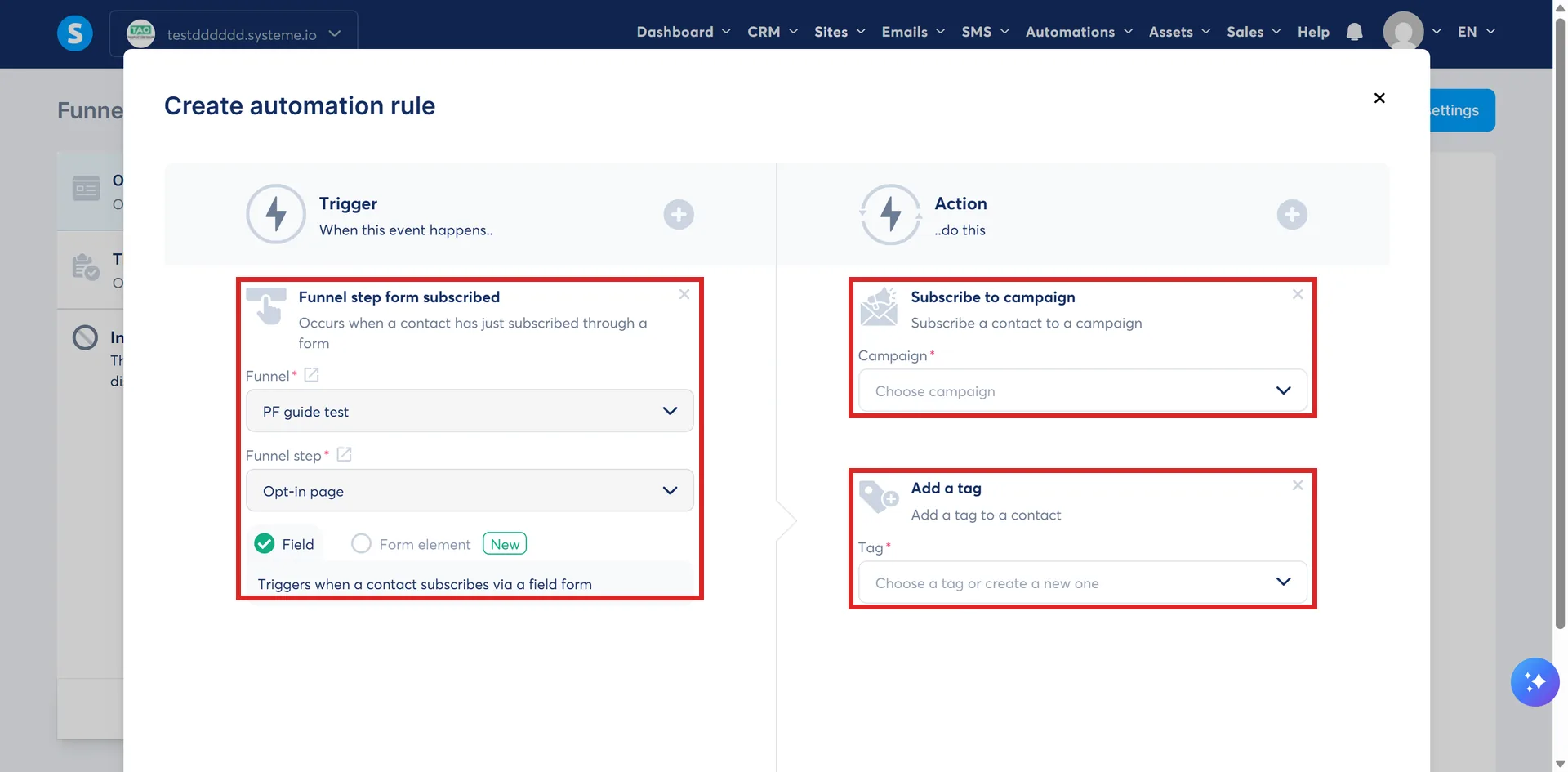
You can build the same rule from Automations, then Rules, then Create, and pick your opt-in page there.
Two other triggers named in systeme.io's campaign article start a campaign the same way. New sale sends it to customers after they buy. Tag added sends it when a contact is given the tag you choose, and systeme.io notes the tag must be added after the rule has been set up.
People already on your list can be added by hand. Go to CRM, then Contacts, tick the contacts, then click More actions, then Subscribe to campaign. Pick the campaign and the step they start at, then click Subscribe. Two cautions:
- Pick the start step with care. People who signed up through the lead magnet funnel before your change already have the freebie, so start them at step 2. Someone who has already finished the campaign is still subscribed to it, and systeme.io does not say what happens if you subscribe them again, so leave them out.
- Adding a large old list in one go means a burst of sending. systeme.io asks new senders to start with small numbers and keep a steady rhythm, and what email warm-up is explains why.
Step 7. Changing it once it is running
Once people are in a campaign, edits do not reach everyone the way you might expect.
| The change | Who it reaches |
|---|---|
| A new email at the start or in the middle | Only people who have not reached that point. Anyone past it never gets it. |
| A new email at the end | Everyone still in the campaign, including people who finished weeks ago, and possibly at once. |
| A changed delay, time or day on an email | Only people who join after you save. Everyone already in keeps the old timing. |
| Every email switched off, then on again | Everyone still in the campaign, again, including people who already received them. |
| The whole campaign deleted | Nobody. It stops at once, everyone in it is unsubscribed from it for good, and its emails and settings are erased. |
For the timing change, systeme.io's own picture is a train: each contact follows the track as it was laid when they set off, and changing the track later only changes the route for the ones who set off after.
A contact who unsubscribes from your marketing emails, or whose address bounces, is not taken out of the campaign. They stay in it and keep moving through it, but receive nothing while their status is Unsubscribed or Bounced. If it changes back to Subscribed, they pick up at whatever step they have reached by then. Taking someone out of one campaign on purpose is a separate action: Unsubscribe from campaign, under More actions in CRM, then Contacts.
For a significant change, systeme.io's advice is that building a new campaign with the updated content is safer than reworking one people are already in. Deleting a campaign halfway through covers deletion, which is permanent.
How I would write it
This part is my own advice. Where it mentions a systeme.io setting, that setting's source is in the list at the end.
The first email hands over what they asked for, and nothing else. They signed up a few minutes ago for one thing. Put it in the first two lines: what it is, and the link. Leave out the story of how you got started. The offer and your other freebies can wait for the later emails, once they have had the thing and decided whether it was any good. A first email can be this short:
| Subject | Your course launch checklist |
| Here is the checklist you asked for: Download the course launch checklist It takes about ten minutes. Start with the first page. Philip |
One idea per email. Each email makes one point or asks for one thing. If you find two ideas in one email, split them into two emails. The sequence gets longer, but each email gets shorter and easier to act on, and a short email is a light one.
A short lesson in subject lines. Two questions sort a weak subject line from a strong one. Would they know what is inside before they open it? And does it sound like one person writing to another, not a company making an announcement?
| Weak | Strong |
|---|---|
| Welcome to the family | Your course launch checklist is inside |
| Newsletter #2 | The part of the checklist to do first |
| Quick update | Two lines to add to your sales page |
| Don't miss this | Why your opt-in page does not need a logo |
The weak ones could be about anything, so nothing tells the reader to open them now. The strong ones say what the reader gets by opening.
Where to go next
When someone reaches your last email, the sequence has finished with them, though they stay in the campaign. From there you reach them with newsletters, which go to the tag you added in Step 6 rather than to a campaign's contacts. What is the difference between a campaign and a newsletter? sets the two side by side. A full welcome sequence, written out and ready to paste into your own campaign, is planned for the Guides page.
How I checked this guide
Nothing on this site is written from memory. These are the sources I checked to write this guide, and the date I checked them.
- How to set up an email campaignhelp.systeme.io, article 367
- Setting up email campaigns: a guide to common scenarios and key considerationshelp.systeme.io, article 10453
- How to use the email editorhelp.systeme.io, article 1335
- How to send or schedule a newsletterhelp.systeme.io, article 358
- Which links are not allowed in emails sent from systeme.io ?help.systeme.io, article 3730
- How to send a test emailhelp.systeme.io, article 290
- How to add a test email address to check your emailshelp.systeme.io, article 4246
- How to set up double opt-inhelp.systeme.io, article 271
- How to automatically send an email when a lead subscribeshelp.systeme.io, article 280
- How to automate the sending of an email sequence (email campaign)help.systeme.io, article 284
- How to manually subscribe a contact to an email campaignhelp.systeme.io, article 159
- How to delete an email campaignhelp.systeme.io, article 336
- General guidelines and best practices for email deliverability during the first few dayshelp.systeme.io, article 4247
- The Create campaign popup in a workspace with no confirmed sender addressA live systeme.io account
- An address confirmed in a second account and refused as a senderA live systeme.io account
- The automation rule window on an opt-in pageA live systeme.io account
Checked on
Did this guide help?
Answers this guide leans on
- Is a sequence the same thing as a campaign? Same features, different names. What your old tool called things, and what systeme.io calls them.
- Why hasn't my campaign email gone out yet? A delay that is still running, an email nobody activated, or a hold sitting on the account itself.
- How often should I email a list that is brand new? There is no number in the documentation. There is a shape, and it rules out both extremes.