Home / Categories / Contacts
What is the safest way to import an old list?
Clean the file first, bring it in as a UTF-8 CSV with tags applied during the import, then leave it 24 to 48 hours before sending a big campaign to it.
What the importer will take
- CSV only. systeme.io states it accepts CSV file formats and nothing else. An Excel file has to be saved out as CSV first.
- UTF-8 encoding, or accented characters arrive corrupted.
- A delimiter you declare. The import screen has a Select CSV delimiter box offering comma, semicolon or pipe. It has to match the file.
- Clearly labelled columns, such as First Name, Last Name, Email, Tags and Registration Date.
- An email column. Required, because it is the primary identifier for each contact.
What to do to the file first
This is the part that decides whether the import causes damage, and all of it happens before systeme.io is opened.
- Export from the old tool as CSV, then look at what came with it: names, status, registration date, tags, interaction history.
- Take out duplicates, invalid addresses and repeated emails, so one person does not become several entries.
- Take out generic or suspicious addresses. systeme.io names test@test.com and admin@domain.com as examples.
- Leave unsubscribed and inactive people unsubscribed. systeme.io is explicit that their status is not to be reactivated.
- Keep the opt-in proof. Only addresses that gave explicit consent belong in the file, and systeme.io states that as a requirement of the import rather than a suggestion.
- Keep a copy of the original list before anything is uploaded.
Unsubscribed contacts can still be brought across, as long as they carry the Unsubscribed status. Select them after the import, open More actions, and choose Unsubscribe from marketing emails. They stay in the account and receive nothing.
The import itself
- Go to Contacts under the CRM tab and click Import contacts.
- Set the Select CSV delimiter box to comma, semicolon or pipe, matching the file.
- Click the box reading Click to select the CSV file that contains your contacts and upload it.
- Pick a tag to assign to everyone in this file, then click Next.
- In the popup that follows, set the data type of every column, so each one lands in the right field.
- Click Import.
Getting the file into CSV in the first place is an Excel job, not a systeme.io one. systeme.io's route is File, then Save as, then choosing the separator, then Save. The separator picked there is the one that goes in the delimiter box a minute later.
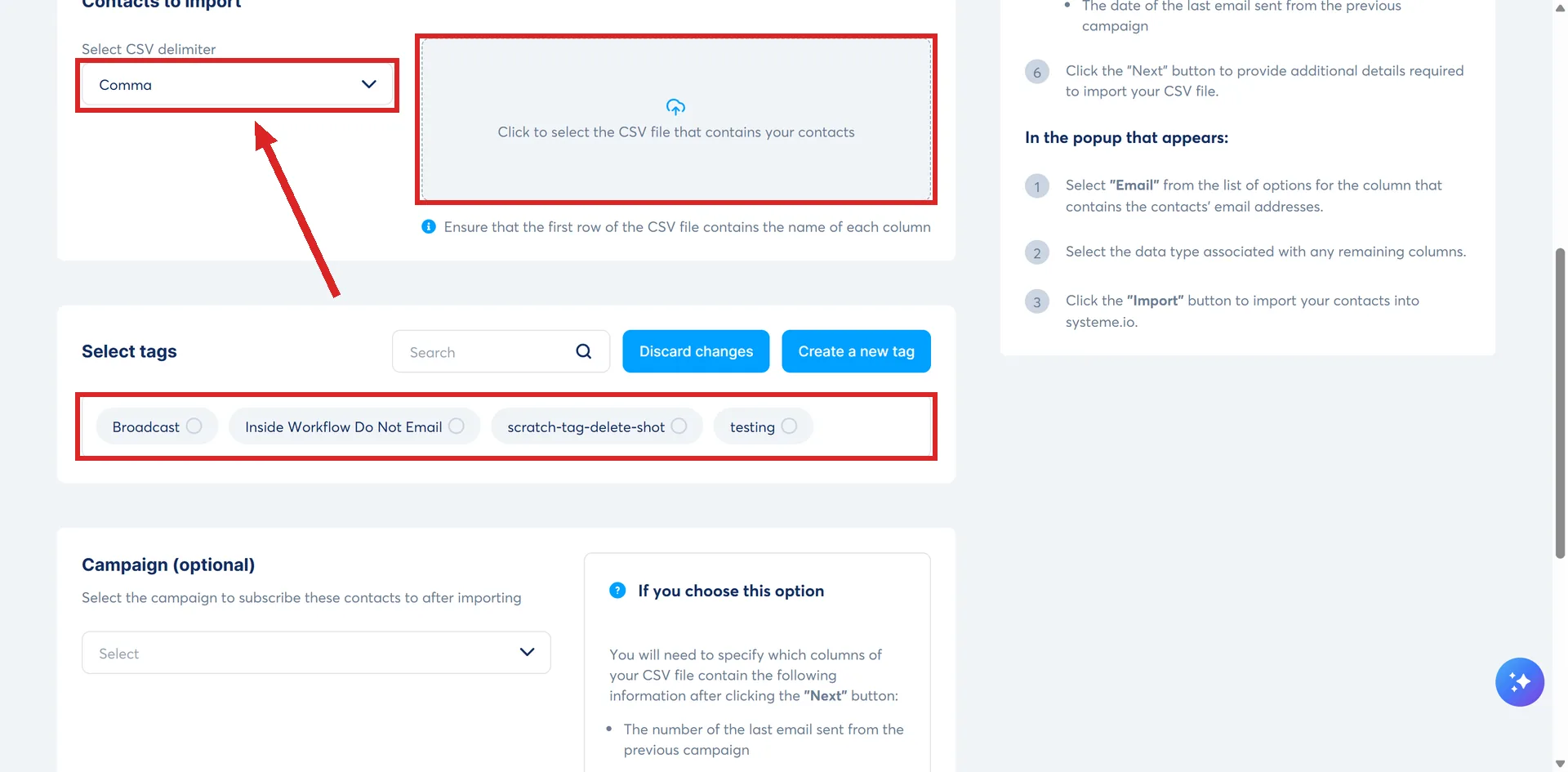
Two things are worth setting while that screen is open, because doing them afterwards is far more work.
- A source tag. Something like migration_2026, so the imported people can be told apart later.
- Custom fields. Any column that belongs in a custom field has to be pointed at it during the mapping step.
Subscribing the list to a campaign as it imports
The import screen has a Campaign (optional) dropdown that subscribes everyone in the file to a campaign. Using it adds two more columns to map, and both are mandatory when it is used.
- Select last sent email number column: which step of the old sequence each person had reached.
- Select last sent email date column: when they received it.
Read the report
systeme.io produces a summary of the contacts imported successfully and any errors, and asks for it to be analysed carefully, because a mismapped column means lost data.
A report showing fewer contacts than the file's row count is not necessarily a sign anything went wrong. Whether a duplicate reaching the importer produces one contact or two is not stated in systeme.io's import guidance, and a row matching an email already in the account may update that existing record rather than add a second one next to it. Either way, the count can come out lower without an error having happened.
Before assuming a problem, search the contact list for a few of the specific addresses that seem to be missing. If they are already there, the file's row count was never going to match the number of genuinely new contacts.
The rule that catches people out
Do not send a big campaign to the list the moment the import finishes. systeme.io asks for 24 to 48 hours for its servers to process new contacts, and says to avoid a massive campaign immediately after an import.
For thousands of contacts it also asks for the import to be split into batches rather than done in one go. Its own table of migration errors gives the same fix against a spam risk: migrate in batches and test first.
Students are their own case
Adding a student to a course sends an automatic email with the link to the member area. Importing a batch of old students therefore triggers those emails. systeme.io asks for a gradual import when those people have not heard from the business in a while, to avoid mass bounces.
How I checked this answer
Nothing on this site is written from memory. These are the sources I checked to write this answer, and the date I checked them.
- How to import or export a contact listhelp.systeme.io, article 238
- Migration of your contact list to systeme.io: what you need to know before getting started (advanced tips)help.systeme.io, article 10953
- Essential steps to import contacts successfullyhelp.systeme.io, article 4346
- How to subscribe contacts to a campaign when importing a contact listhelp.systeme.io, article 1062
Checked on
From my own use
Before importing an old list, I ran it through ZeroBounce, a list-cleaning service, to strip out the junk and dead addresses first.
Did this answer your question?
Keep reading
- What actually happens when I delete a contact? It goes to a bin, not to nothing. And your contact count drops the moment it does.
- Contacts are disappearing from my list and I did not delete them. Nobody clicked delete. Software did, for one of three documented reasons.
- What is a course bundle? Several courses sold as one product, and the delay rule that stacks.