Home / Categories / Booking calendar
What is the booking calendar for, and who needs it?
The booking calendar is systeme.io's built-in appointment scheduler. A visitor picks a slot from a calendar placed on one of your pages, and the booking lands in your own account rather than in a separate scheduling tool.
What it stands in for
systeme.io describes the feature as scheduling and managing appointments directly from the account, removing the need for outside platforms such as Calendly.
Its own comparison is unusually specific about where that stops. It states that the calendar does not yet match the advanced team scheduling of Calendly Teams, or the more complex intake forms of Acuity. One person booking one person's time is the case it covers well.
Where it lives
Under CRM, then Calendar. That screen holds three tabs, which read Events, Bookings and Availability from left to right.
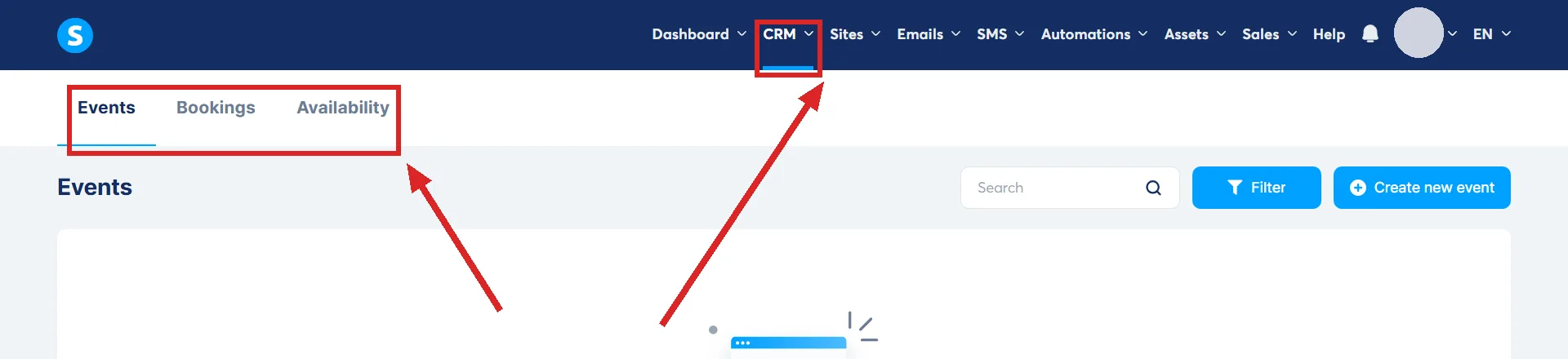
Nothing is public until a calendar is placed on a page, which is a separate step in the page editor.
The four phases
- Integrations, optional. Connecting Google Calendar, Google Meet or Zoom before anything else. systeme.io recommends it because it prevents double bookings and generates the meeting link for each client automatically.
- The event. Availability and at least one event have to exist before appointments can be taken.
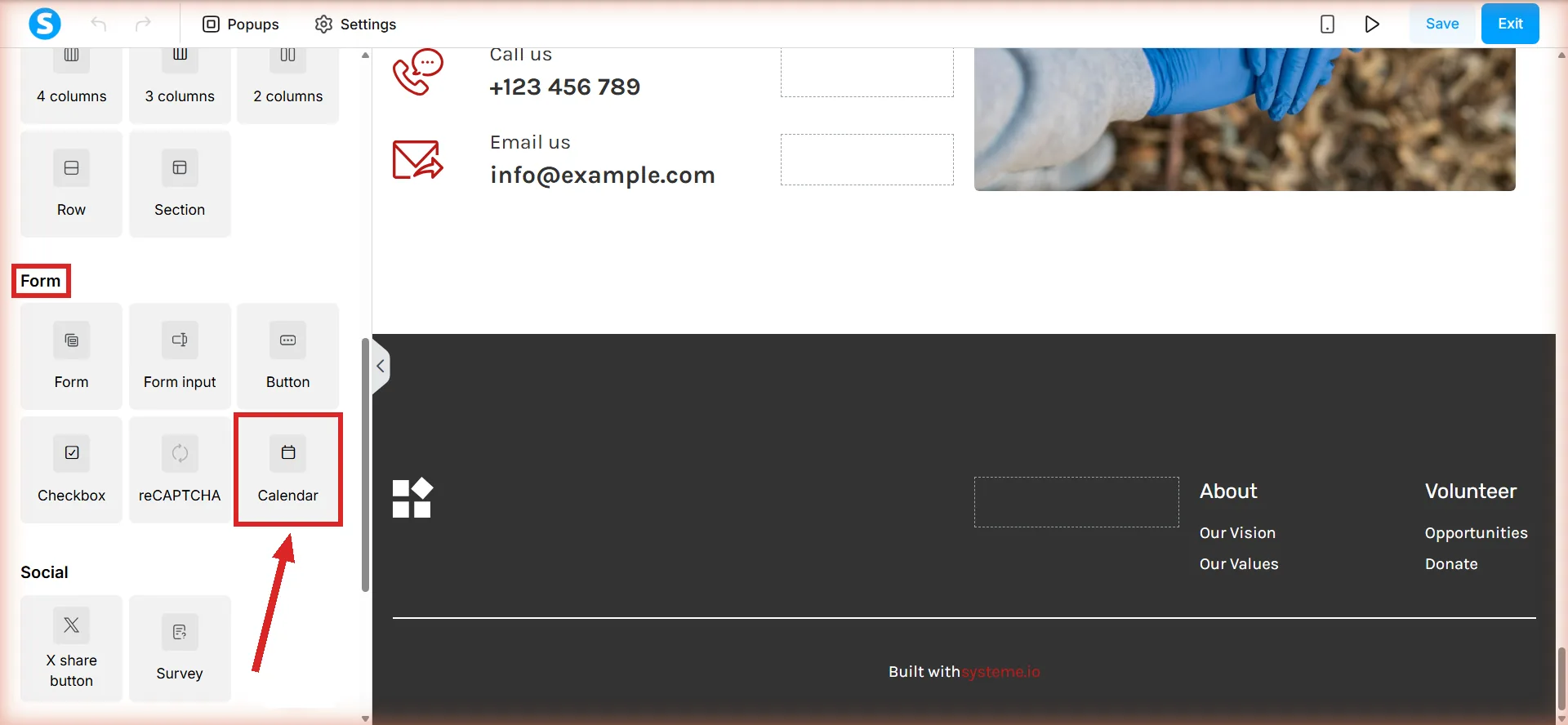
- The page. Drag the Calendar element onto an opt-in page, a sales page or a blog page for free bookings. Paid bookings use a different element on a different page type.
- The Bookings tab. Where every upcoming and past appointment is listed, cancelled or moved. It has its own filters for event name, status and date range.
The element behind the third of those is called Calendar in the page editor. It sits at the end of the Form group in the panel on the left, after Checkbox and reCAPTCHA, not in the Other group at the foot of the list.
What an event is made of
Creating one starts at Create new event in the Events tab. The settings page that follows holds the parts an invitee will see: an event name (systeme.io's example is Free consultation), a host name, a duration, a host photo that defaults to your profile picture, and a description that shows on the booking page.
One field there is worth setting before the first booking rather than after. A custom logo uploaded on the event replaces the systeme.io logo in every email that calendar sends, including the booking confirmation and the reminders.
Individual or group
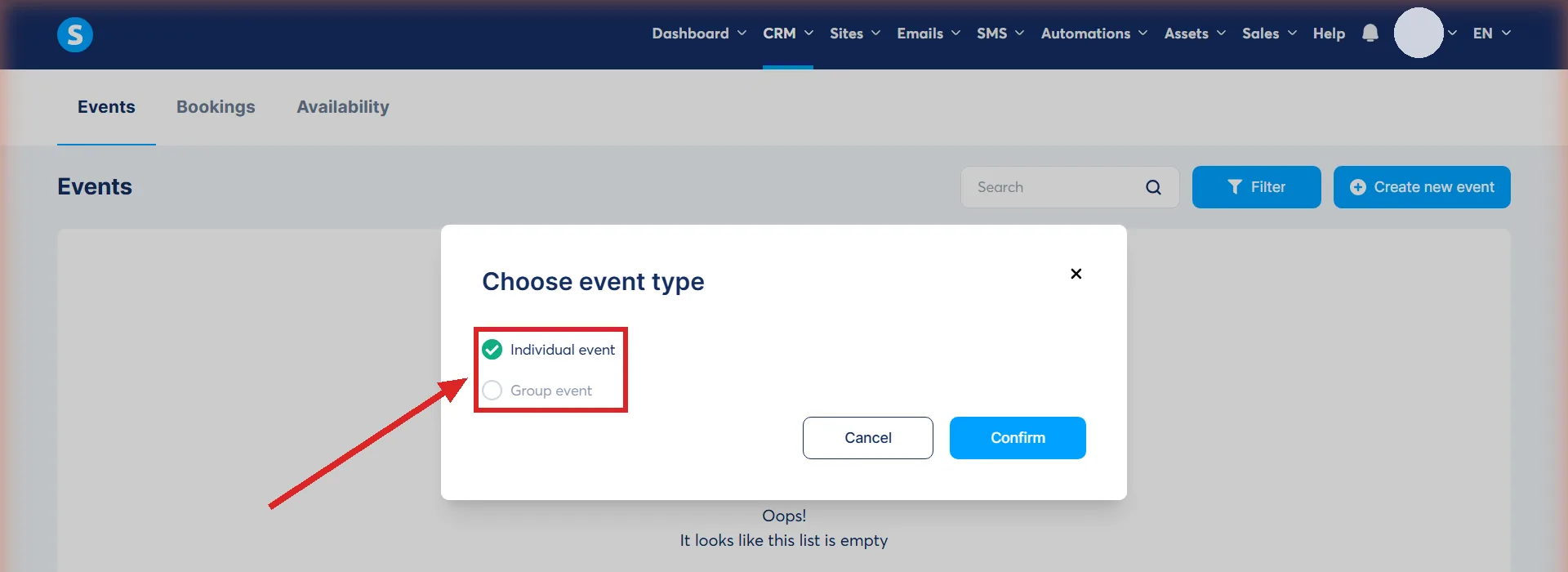
The choice is made when the event is created. Create new event opens a popup headed Choose event type, and the two options on it are the whole of that popup: Individual event, which is ticked already, and Group event.
| Individual event | Group event | |
|---|---|---|
| Who can take a slot | One person | Several people, up to a limit you set |
| systeme.io's examples | 1-on-1 coaching, consultations, discovery calls | Live webinars, group workshops, online classes |
| On the Google Calendar entry | Event name plus the invitee's full name | Event name plus the number enrolled |
On a group event the participant limit should not go above what the meeting tool itself supports. The host always sees the full list of who is enrolled. Invitees do not see each other's names in their confirmation emails.
The Google Calendar entry is labelled differently for each. systeme.io's examples are an individual event showing the event name with the invitee's full name after it, and a group event showing the event name with the current number of participants after it. On a Zoom event the link is added to the calendar entry as well.
Where the meeting happens
Three location types, and more than one can be offered on the same event so the attendee picks.
- Online meeting. Zoom or Google Meet through the integration, or a meeting link you type in yourself.
- Phone. Your number goes on the event.
- In person. A physical address and a phone number.
The host email address shown to invitees comes from the Google Calendar selected on the event. Without a Google integration connected, the systeme.io account email is used instead.
What the visitor goes through
A free booking is three steps, generated by the element rather than built by you.
- Calendar. Available dates and times, in a 12 or 24 hour format you choose.
- Form. Name and email, plus any other form fields you add, and custom questions that can each be marked mandatory.
- Thank you. A confirmation screen. It can redirect to the next funnel step, to a URL of your own, or nowhere at all.
Setting when you are free
Availability comes in two layers. The Availability tab holds the global schedule used as the default for every event: weekly hours, several slots a day if needed, date-specific overrides, and time off for holidays that blocks dates entirely.
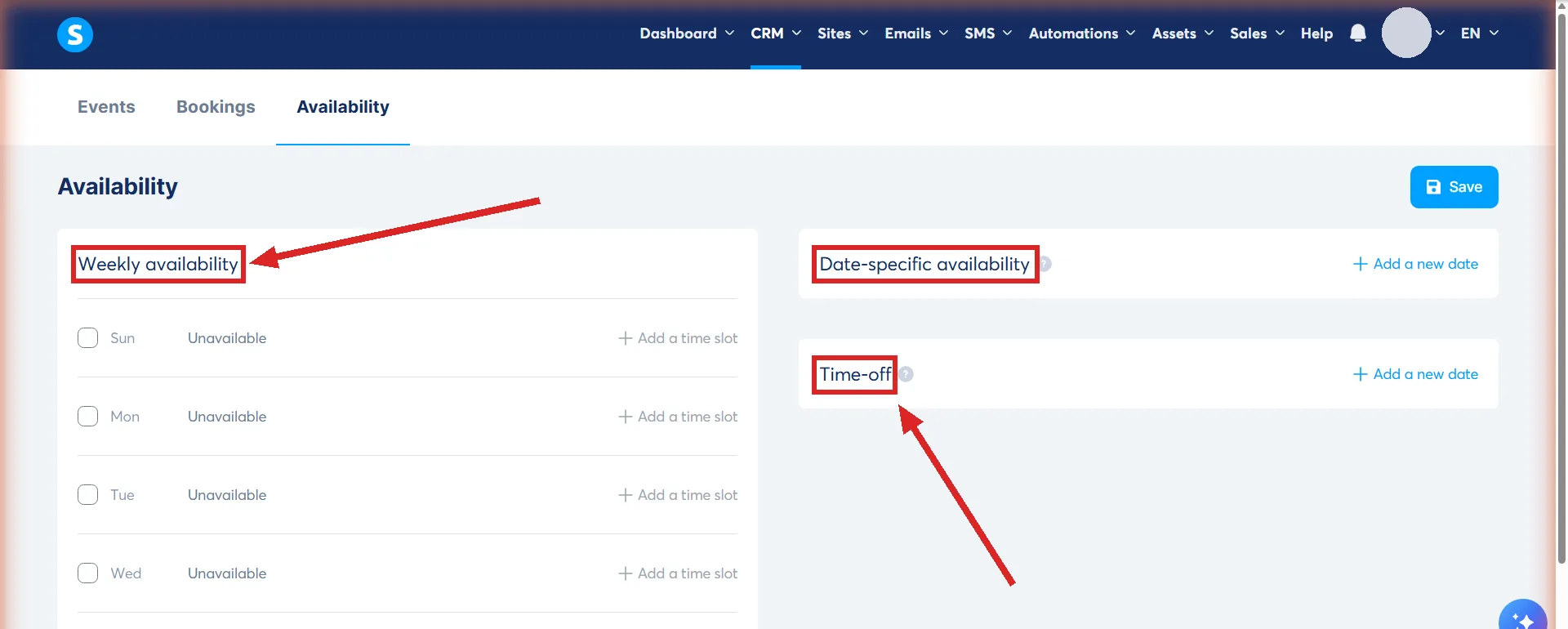
Each event can then either use that global schedule or carry its own, through a Use global availability toggle.
On top of it sit the constraints, and systeme.io's own examples show what each one is for.
- How far ahead people may book. Three choices: indefinitely into the future, a number of days into the future such as 30, 60 or 90, or a fixed start and end date.
- Minimum notice period. Set to 2 hours, nobody can book a slot starting sooner than two hours from now.
- Cancellation deadline. 0 hours lets an invitee cancel right up to the start. 24 hours stops last-minute cancellations.
- Start time increments. How often a slot appears, every 15 minutes for instance.
- Daily limit on bookings, and buffer time before or after each one.
- Time zone display. The appointment time can be shown in the host's time zone or the guest's.
Any one of six things can empty the calendar on its own: the global weekly schedule, time off, the Use global availability toggle, how far ahead people may book, the minimum notice period, or the daily limit. What a visitor sees when none of these settings leaves a bookable slot is not documented, and has not been tested here.
The global weekly schedule and the toggle are the two most likely to have gone unconfigured altogether, since neither one offers anything until it is deliberately filled in.
What runs without you
- A confirmation email to both the host and the invitee, immediately.
- Reminder emails. Two by default, 24 hours and 1 hour before. Up to three per event, none closer than 10 minutes to the start, and all of them removable. Duplicating an event copies the reminder settings with it.
- Rescheduling and cancelling from the invitee's side. Both buttons are at the bottom of the confirmation email they already have.
- Reminder rescheduling. Move a booking and the reminders are recalculated and sent again against the new time, even where they had already gone out for the old one.
The timing of a reminder is yours. The wording is not: systeme.io generates the content automatically and it cannot be edited.
Who it is built for
The two event types answer that better than any description. Individual events cover people selling or giving away their own time one client at a time, which is the coaching, consulting and discovery-call case. Group events cover a live session with a fixed capacity.
Cost is not the deciding factor. systeme.io states the booking calendar is included on the free plan, and that no upgrade is needed for the core scheduling features.
What it will not do
- Import your old bookings. There is no automated import of past appointments. Existing bookings stay in the old tool until they happen, and the booking links get swapped over wherever they appear.
- Undo a cancellation. A cancelled booking cannot be rescheduled, and the option disappears from the menu once the status changes.
- Let invitees see each other. On group events that is deliberate, for privacy.
How I checked this answer
Nothing on this site is written from memory. These are the sources I checked to write this answer, and the date I checked them.
- How to use the booking calendar feature on systeme.iohelp.systeme.io, article 3957
- How to set up your calendar eventshelp.systeme.io, article 10270
- How to set your calendar events availabilityhelp.systeme.io, article 10271
- How to offer free calendar bookingshelp.systeme.io, article 10273
- How to manage your calendar bookingshelp.systeme.io, article 10272
- How to reschedule or cancel calendar bookingshelp.systeme.io, article 10603
- The booking calendar feature page and its FAQsysteme.io/booking-calendar
- The CRM Calendar screen and its three tabs, the Choose event type popup, the Availability tab, and the Calendar element in the page editor of an opt-in page, checked on 5 September 2026A live systeme.io account
Checked on
Did this answer your question?
Keep reading
- What counts as a contact against my plan? The four numbers, what creates a contact, and what happens on the fourth day after you pass one.
- Can I get deleted contacts back? There is a bin, and it holds them for 30 days. Where it is, and the row that never empties.
- What is the safest way to import an old list? The file it will take, the two things set during the import itself, and the wait afterwards.