Get paid: connect Stripe and PayPal, then test it
Stripe and PayPal connected to your systeme.io account and switched on for your funnel, in a currency both accept, with a test purchase made and refunded before a real customer reaches the checkout.
Before you start
systeme.io takes payments through payment gateways that you connect to your account. Before you connect Stripe and PayPal, have these ready.
- A Stripe account. You can also create one while you connect.
- A PayPal Business account. systeme.io's article says you can sign up for one or convert an existing Personal account to a Business account, and adds that it is free.
- The fields each gateway needs on your order forms. For Stripe, the Email and First Name fields are required on your payment pages. For PayPal, add the email, first name and last name fields to all of your order forms.
- A custom domain, if you want Apple Pay. systeme.io's Apple Pay article lists one among what you need. Its Stripe and PayPal articles do not.
Step 1. Connect Stripe
Click your profile picture, then Settings, then Payment gateways in the menu on the left. Click Connect beside Stripe.
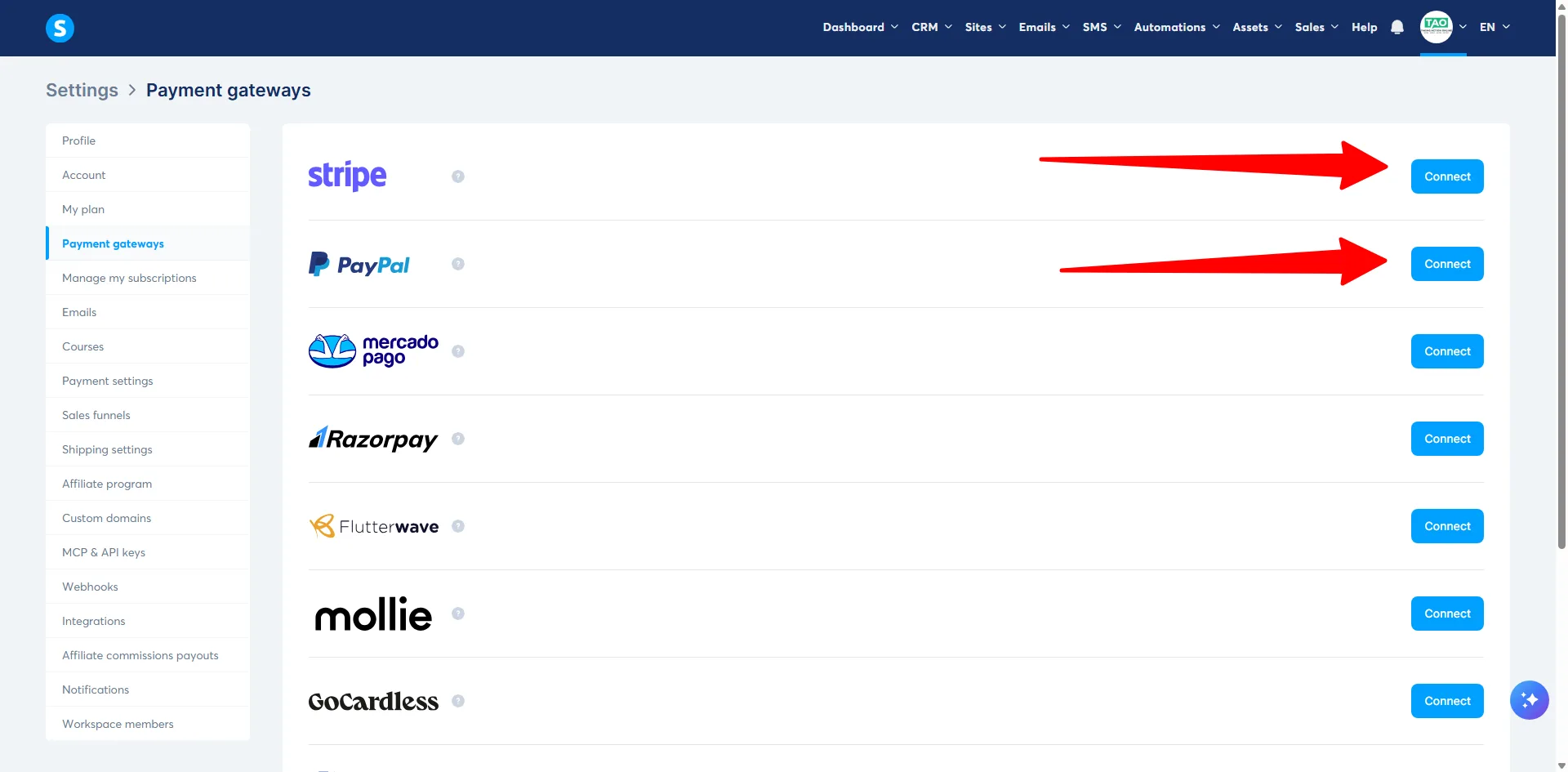
You are sent to a page where you log in to Stripe or create an account. First, select the country where your business is registered and the type of business: individual, company or nonprofit organization. Do I need a registered business to take payments? looks at that question.
On the next screen, verify your personal information. systeme.io says this is required to activate payments. Then click Authorize access to this account, and you are sent back to systeme.io.
Step 2. Connect PayPal
On the same Payment gateways screen, click Connect beside PayPal. A new tab opens and asks you to log in to PayPal with your email address and password. If two-factor authentication is on for your PayPal account, you also enter a security code sent to your phone or email.
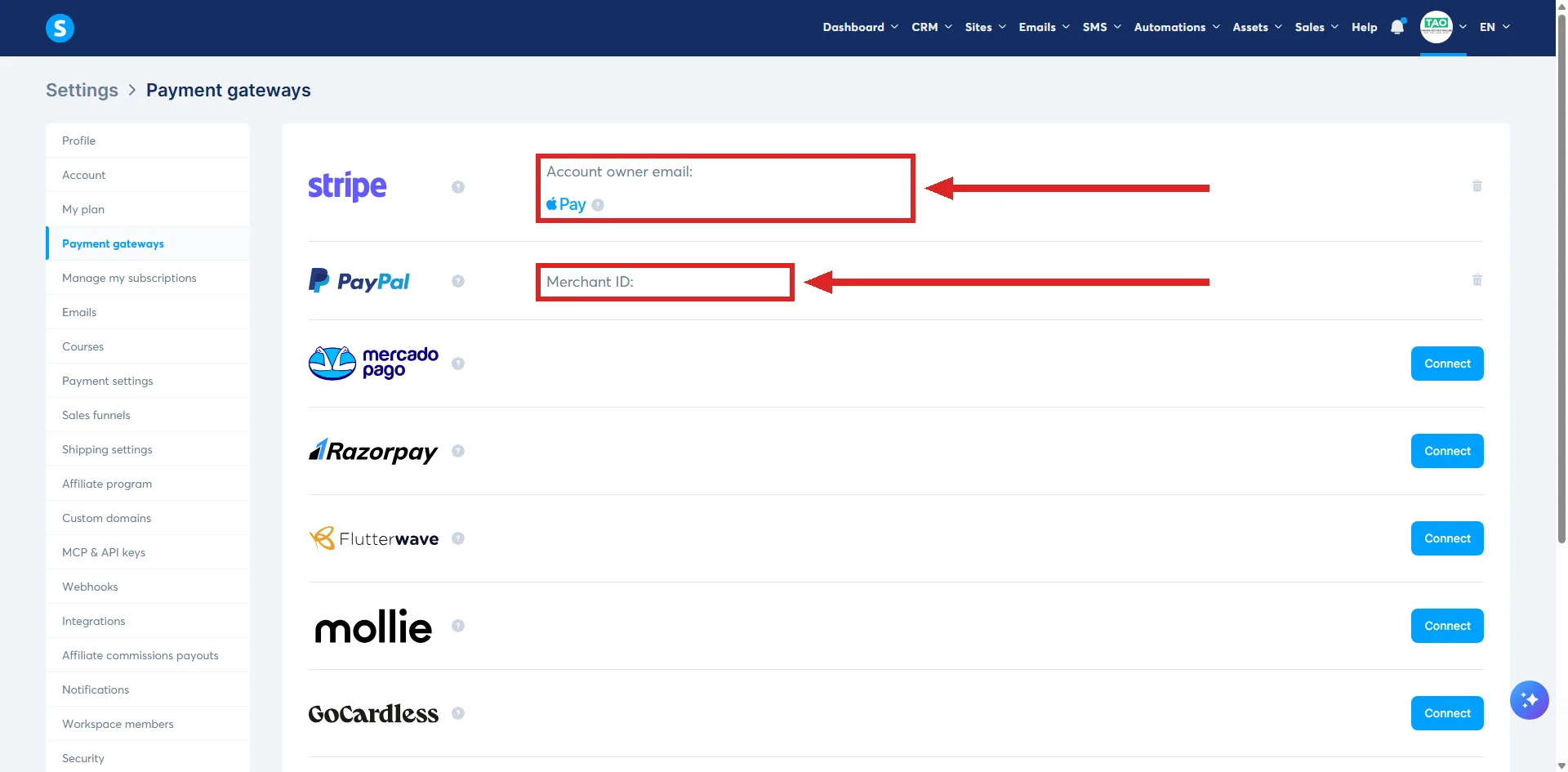
PayPal then shows a permission screen. Click Allow, and when PayPal confirms the connection is ready, click Return to systeme.io. It can take a few seconds. When it is done, you see your PayPal Merchant ID.
Two error messages can appear while PayPal is verifying your account, or when PayPal has restricted it: PayPal keys are incorrect, and Can not set up integration with PayPal. PP returned error #10002: Account is restricted. systeme.io recommends contacting PayPal support for help with the restriction.
Step 3. Switch on PayPal's payment notifications
PayPal's Instant Payment Notifications, or IPN, let systeme.io receive automatic updates on the status of your payments. You set them up in your PayPal account, not in systeme.io.
- Sign in to PayPal, click the profile icon, then Account settings.
- Scroll down, click Notifications, then Update in the Instant payment notification section.
- Click Choose IPN settings, then set these two fields.
| Field | Set it to |
|---|---|
| Notification URL | https://systeme.io/payment/webhook/listening-paypal |
| IPN messages | Receive IPN messages (Enabled) |
Click Save. PayPal then shows a window confirming that the notifications are on.
systeme.io says single payments do not need these notifications to show up in your account. Payment plans and subscriptions are different: systeme.io needs PayPal's notification to process them and generate the invoice.
Step 4. Choose your default currency
Click your profile picture, then Settings, then Payment settings. The field is called Default currency when creating a new price plan. Change it to the currency you sell in.
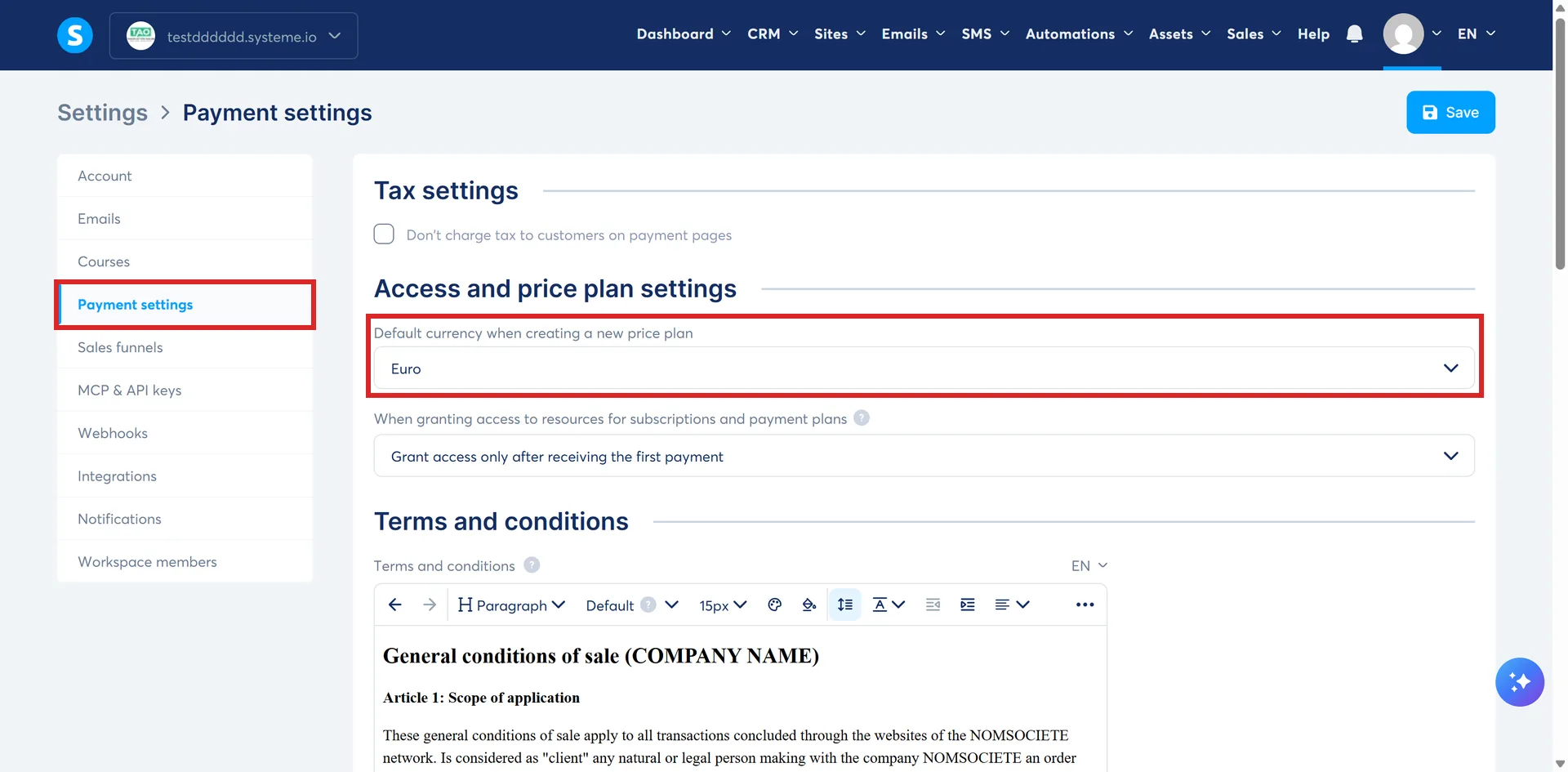
systeme.io marks one rule about this setting as important: the new default applies to any new funnels you create, and existing funnels are not affected. A funnel you already have keeps its own currency, which Step 5 covers.
Pick a currency both gateways accept. systeme.io lists 46 currencies for Stripe card payments and 25 for PayPal, and all 25 of PayPal's are on Stripe's list too. So any currency PayPal takes also works with Stripe cards. It does not work the other way round: INR, ZAR, NGN and AED, for example, are on Stripe's list but not on PayPal's. systeme.io's PayPal article asks you to make sure your funnels and products use one of its supported currencies before you receive payments.
Step 5. Switch both gateways on for your funnel
If you do not have a funnel yet, create one. Go to Sites, then Sales funnels, and click Create. In the popup, enter a name, select your domain and choose the currency. Of the four funnel types, Sell comes preset with an order form and a thank you page.
Then open your funnel's settings. Go to Sites, then Sales funnels, click the funnel and click Funnel settings. The popup that opens is called Edit funnel.
Check the Currency field first. Changing a funnel's currency disconnects all products, coupons and price plans from its order forms, upsell and downsell pages, and you have to reconfigure them by hand. Settle it now, before Step 6 puts a price on the order form.
Under Accepted payment methods, tick both boxes and click Save. systeme.io's article names them Credit card or debit card and PayPal. On screen, the first one reads Credit or debit card.
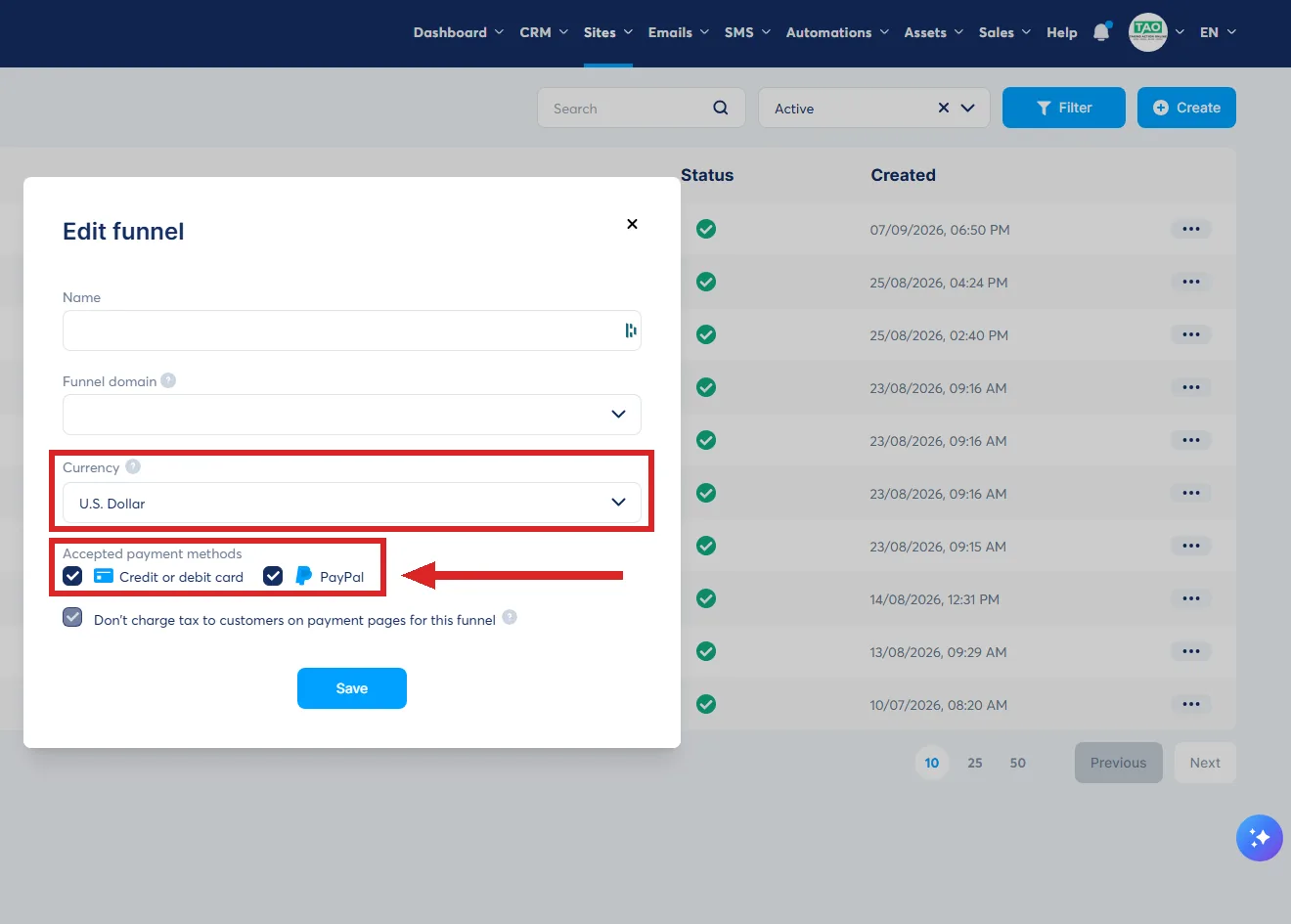
The boxes you see can differ. In the test account this site uses for its screenshots, the same popup listed Credit or debit card and Apple Pay, with no PayPal box. systeme.io's articles on connecting Stripe, connecting PayPal and setting up Apple Pay do not say when these boxes appear. Neither does its article on switching on payments by Stripe or PayPal.
Apple Pay comes through the Stripe integration, and it needs a custom domain. Once Stripe is connected, the domains on your account are added to Apple Pay and validated automatically. Click Show connected domains to list them.
To add a domain later, connect it to systeme.io as a custom domain first, as in Your own domain, set up in the right order. Once it is validated, go to the Stripe payment gateway, click Apple Pay, enter the domain in the popup and click Save.
Four more things systeme.io's Apple Pay article says.
- On a Mac, Apple Pay only works in the Safari browser.
- India and Thailand are not yet among the countries where Apple Pay is available.
- If your Stripe account is registered in India, you cannot offer Apple Pay.
- When a buyer pays with Apple Pay, the details stored in Apple Pay are applied to your order form. That includes name, email, phone number and address, and it overwrites what the buyer typed into those fields. Why is the wrong email address on my Apple Pay orders? explains what that changes.
Step 6. Give the test a low price
A test purchase may cost you fees. systeme.io recommends a low price for the test, such as $1, to keep third-party fees down.
Open your funnel's order form step. Under Choose offer type, select Digital product. Click the plus icon next to Digital product to add a resource, and name the product in the Digital product name field. For the test, this site suggests a tag as the resource. systeme.io's order form article says that after a successful payment, the customer is assigned the tag.
Then click the plus icon to configure the price plan, and click Create a new one. Fill in the display names for the dashboard and the order form, and the statement descriptor. Select One-time payment, enter the payment amount, set the tax behavior and click Save. Then click the main Save button to finish the digital product settings.
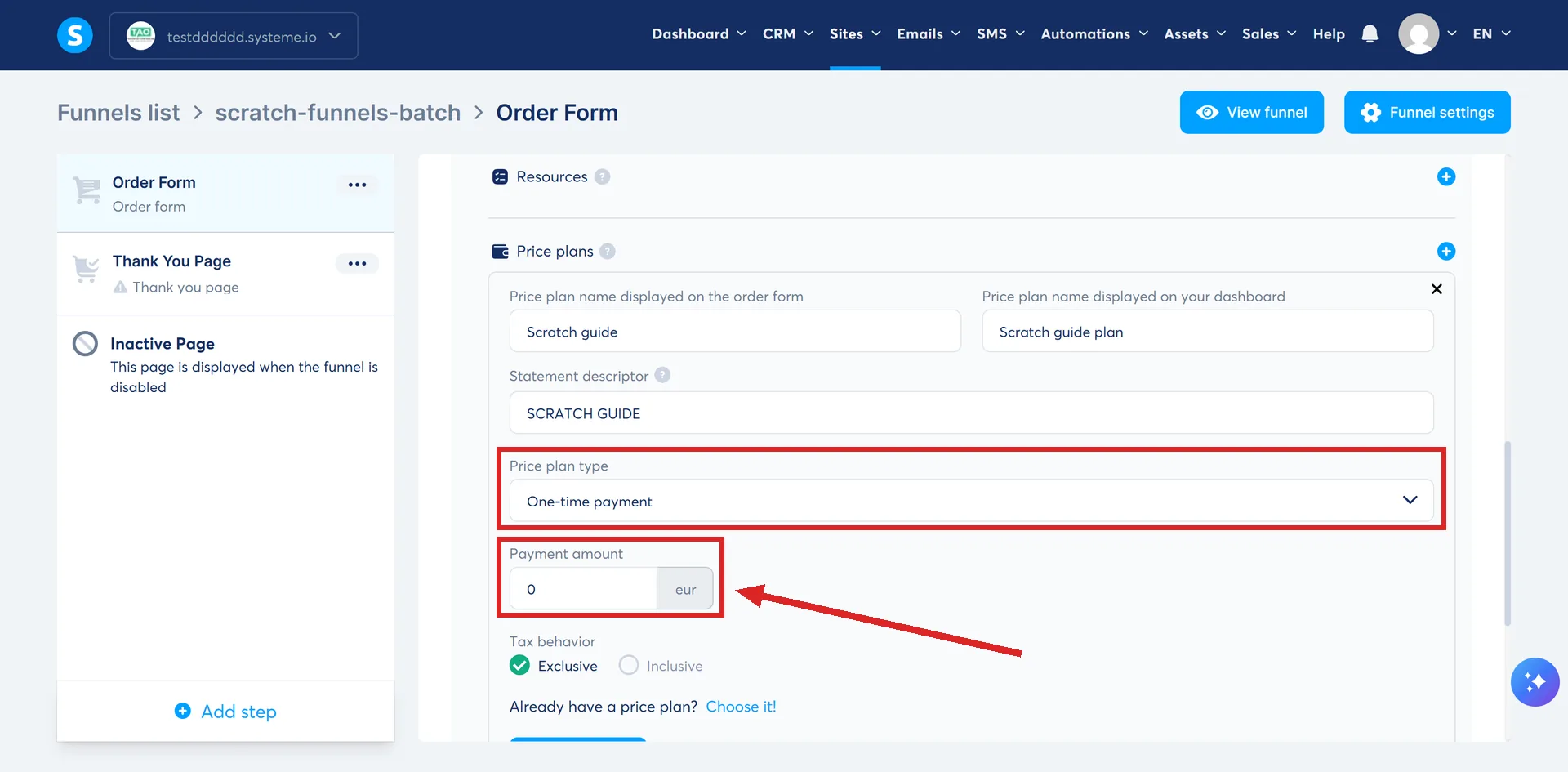
What is a price plan, and why isn't it just a price? explains the other two price plan types.
Step 7. Buy from yourself
systeme.io says it is not possible to make a test purchase through Stripe, so the only way to make sure your funnel works is to buy from it yourself. You can refund the purchase from your systeme.io account afterwards.
On the funnel's order form step, click View funnel step to open the order form. Fill it in, then click the button to submit your purchase.
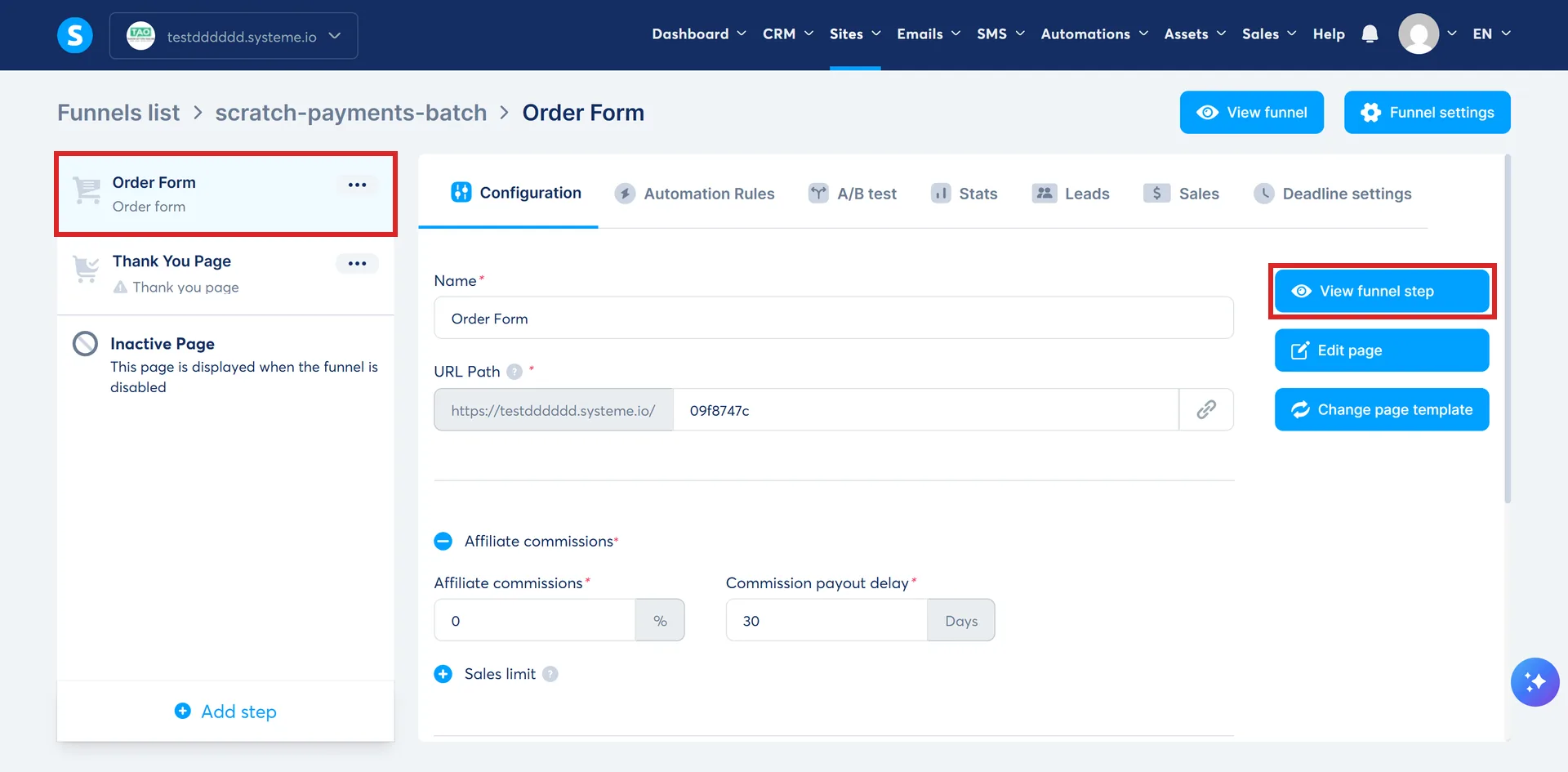
systeme.io's article describes one test purchase. If you ticked both boxes in Step 5, buying once by card and once with PayPal tests both gateways rather than one.
Step 8. Find the purchase, then refund it
Go to Sales, then Transactions. All transactions show by default. To find yours, filter by your email address and click Filter.
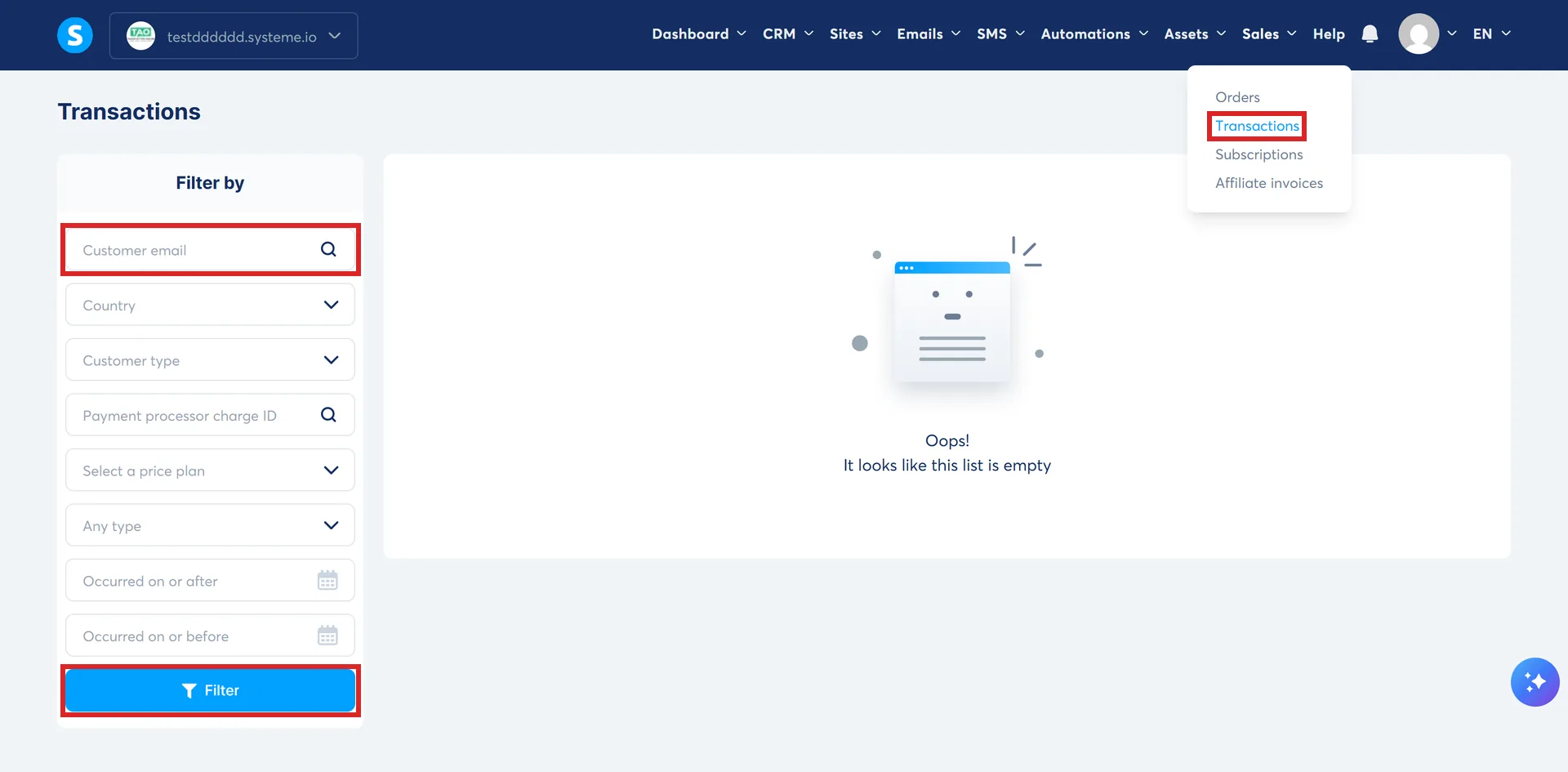
If a PayPal purchase does not appear, systeme.io's first check is the notification settings from Step 3. Even with those right, PayPal can take up to 72 hours to confirm a payment, so the transaction may not show straight away. PayPal also occasionally fails to send the notification. Resending it by hand from your PayPal account, for that payment, generates the transaction and its invoice. systeme.io adds that this typically does not happen with single payments, because they do not need the notification to show. The price plan you set up for the test in Step 6 is a one-time payment.
Once your purchase is there, refund it. Click the three dots on the transaction, then Refund, and confirm. Refunds depend on your payment gateway, and one requirement is enough money in your gateway balance to cover the refund. They are all or nothing: systeme.io says partial refunds are not currently supported. After the refund, an invoice with a negative amount appears.
Step 9 (optional). Add fraud rules in Stripe Radar
Stripe Radar is a fraud prevention tool, and Stripe's basic fraud detection is always active. Basic protection is included in Stripe's standard pricing, while advanced features may cost extra.
Custom rules give you more control. They are managed in your Stripe account, and systeme.io cannot configure them for you. In your Stripe Dashboard, go to Payments, then Radar, then Rules. Click Add rule and choose a type, such as Add block rule. Enter the condition, click Test rule to preview its effect, then click Add rule to switch it on. If you do not see Radar or Rules there, you may need to activate the feature for your account.
systeme.io calls these rules optional, but highly recommended if you want stricter control over fraudulent charges.
Where an article and the screen disagree
systeme.io's test purchase article says you can filter transactions by email address, product name and date range. Its refund article lists email address, price plan, date range, customer type and country, with no product name, and on 15 September 2026 the Transactions screen in the test account had a price plan filter and no product name filter.
Where to go next
With payments working, two answers cover what comes next: what a thank you page is for, the page a buyer sees after paying, and what an order bump is, a second product offered on the order form. A guide to selling a first ebook or PDF is planned for the Guides page.
How I checked this guide
Nothing on this site is written from memory. These are the sources I checked to write this guide, and the date I checked them.
- How to connect your Stripe account to systeme.iohelp.systeme.io, article 225
- How to integrate PayPal with systeme.iohelp.systeme.io, article 132
- How to integrate Apple Pay on systeme.io via Stripehelp.systeme.io, article 3813
- The Payment gateways settings screen before Stripe or PayPal is connected, captured by Philip on 15 September 2026A live systeme.io account
- The Payment gateways settings screen with Stripe and PayPal connected, captured by Philip on 15 September 2026A live systeme.io account
- Why aren't my PayPal payment transactions appearing?help.systeme.io, article 314
- How to change the default currency of your offershelp.systeme.io, article 267
- The Payment settings screen, captured on 15 September 2026A live systeme.io account
- How to change the currency of an existing sales funnelhelp.systeme.io, article 1969
- How to create a funnelhelp.systeme.io, article 147
- How to activate payments by Stripe or Paypalhelp.systeme.io, article 307
- The Edit funnel popup opened from a funnel's Funnel settings button, captured on 15 September 2026A live systeme.io account
- The Edit funnel popup in an account with PayPal connected, captured by Philip on 15 September 2026A live systeme.io account
- The Edit funnel popup in the test account, captured by Philip on 15 September 2026A live systeme.io account
- How to make a test purchasehelp.systeme.io, article 151
- How to create an order form/payment pagehelp.systeme.io, article 252
- How to create and configure a price planhelp.systeme.io, article 153
- A new price plan form, captured on 6 September 2026A live systeme.io account
- An order form step, captured on 15 September 2026A live systeme.io account
- How to refund your customerhelp.systeme.io, article 259
- The Transactions screen, captured on 15 September 2026A live systeme.io account
- How to use Stripe Radar for fraud protectionhelp.systeme.io, article 4450
Checked on
Did this guide help?
Answers this guide leans on
- Stripe or PayPal: which should I connect first? Both can run at the same time. One of them needs a step by hand that the other does not.
- How do I test a funnel works before sending real traffic at it? Opt in as a stranger, buy at a dollar, refund yourself. Plus the timing rule that fakes a failure.
- Why does my order form show the wrong currency? One setting looks like the fix. It only ever applies to funnels that do not exist yet.